Single sign-on with SAML: set up any identity provider
Ithura signs your team in through your own identity provider (IdP) using SAML 2.0. This is the generic guide: it explains exactly what Ithura, acting as the SAML service provider (SP), needs from any IdP, and what to hand back. Follow it for any SAML 2.0 provider. For the big platforms there are shorter, click-by-click companions:
Single sign-on is per workspace and is configured by a workspace admin (role 20)
at /{workspace}/settings/sso. It is included on the Pro plan. Automated user
provisioning (SCIM) requires Enterprise and is covered separately in the
Enterprise guide; directory-free auto-join by
verified domain is a lighter alternative.
How the connection works
There are two sides, and you move a handful of values between them:
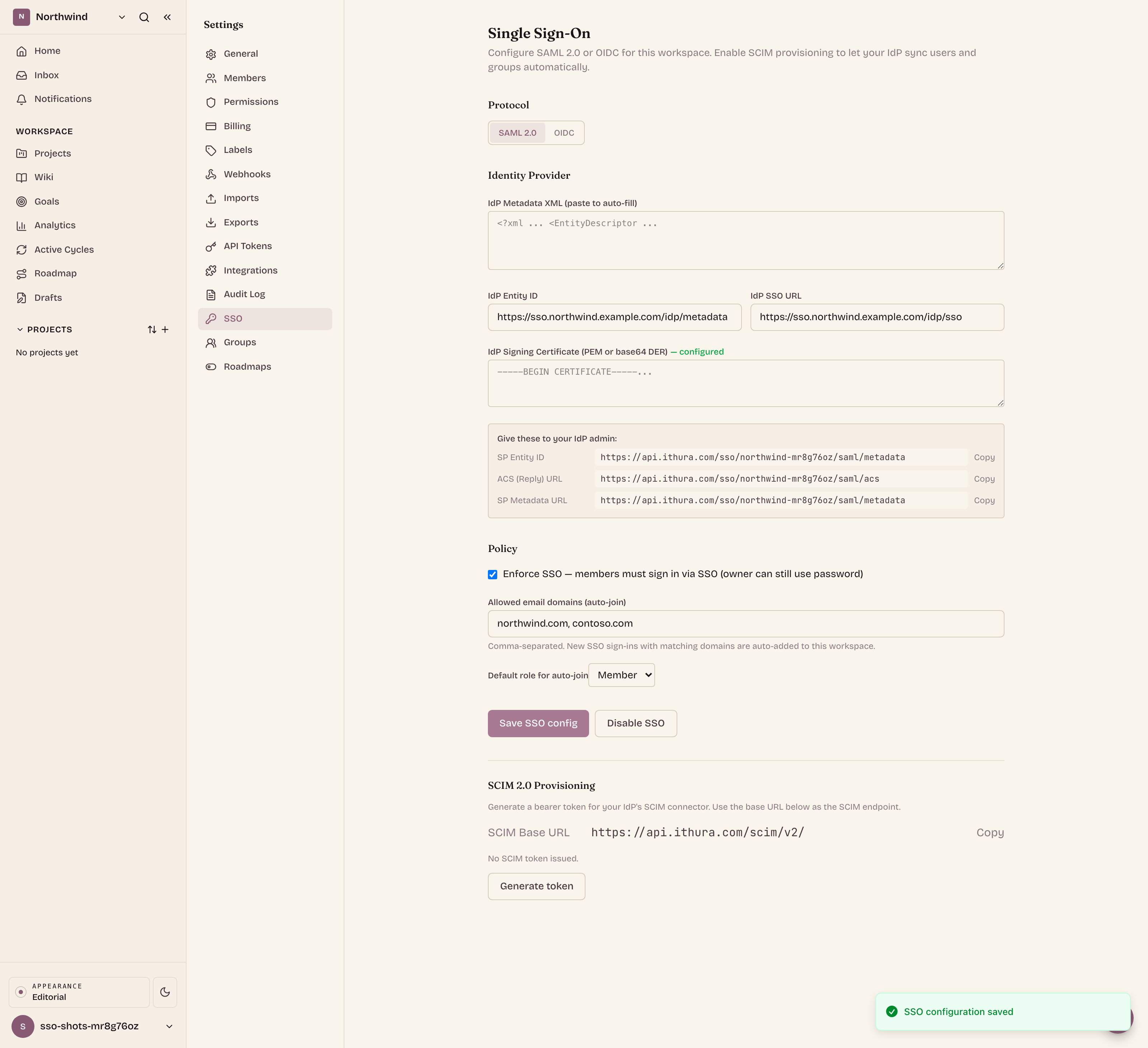
- Ithura (the SP) gives your IdP three values: an ACS URL, an SP entity ID, and an SP metadata URL. On the first save it also generates its own signing keypair.
- Your IdP gives Ithura its entity ID, its sign-on URL, and its signing certificate, which you can hand over all at once as metadata XML.
At sign-in, your IdP posts a signed SAML assertion to Ithura's ACS URL. Ithura verifies the signature, reads the user's email, finds or creates the matching Ithura account, adds them to the workspace at your chosen default role, and issues a session.
What Ithura needs from your IdP
Ithura accepts the IdP configuration in either form, and you only need one:
- IdP Metadata XML (recommended). Paste the metadata document, or the URL your IdP publishes it at. Ithura parses the entity ID, the SSO URL, and the signing certificate out of it, so any blank individual field is filled for you.
- The three fields by hand, if you do not have metadata:
- IdP Entity ID (sometimes called the Issuer).
- IdP SSO URL (the IdP's SAML single sign-on / redirect endpoint).
- IdP Signing Certificate, as PEM (
-----BEGIN CERTIFICATE-----) or bare base64 DER. This is the certificate the IdP signs assertions with.
Ithura validates that you supplied metadata XML, or all three fields, before it will save.
What your IdP needs from Ithura
These are shown, with copy buttons, on the SSO settings page after your first save. They are built from your API host and workspace slug, so they are stable:
| Value | What it is | Format |
|---|---|---|
| ACS (Reply) URL | Where the IdP posts the assertion | https://<api-host>/sso/{workspace}/saml/acs |
| SP Entity ID (Audience) | Ithura's SAML identifier | https://<api-host>/sso/{workspace}/saml/metadata |
| SP Metadata URL | Ithura's SP metadata, downloadable | https://<api-host>/sso/{workspace}/saml/metadata |
On Ithura Cloud the API host is api.ithura.com; on a self-hosted instance it is
your own API host. Note that the SP Entity ID and the SP Metadata URL are the
same string: many IdPs let you import the SP by pointing them at that metadata
URL, which fills the ACS URL and audience automatically.
Ithura's SP metadata is real, downloadable SAML XML
(application/samlmetadata+xml), so IdPs that prefer "upload SP metadata" to
manual entry can consume it directly.
The signing keypair
On the first SAML save, Ithura generates a self-signed RSA-2048 signing keypair
for the SP (10-year certificate, common name ithura-sso-sp). The private key is
sealed at rest and reused on every later save, so re-saving your IdP details does
not rotate it. Ithura signs its AuthnRequests with this key; there is no toggle
to send unsigned requests, and there is no separate SP-key rotation endpoint
today.
Claims: email and name
Ithura keys every account on email, so the assertion must carry one. Ithura reads it in this order:
- The NameID, if it contains an
@. Set the NameID format to EmailAddress and this is enough on its own. - Otherwise an attribute named
email, or whose name ends in/emailaddressor:emailaddress, which matches the standard claimhttp://schemas.xmlsoap.org/ws/2005/05/identity/claims/emailaddress.
If no email is found, the sign-in is refused.
For the display name, Ithura reads (first match wins):
- a
displaynameclaim (.../claims/displayname), or givennameplussurname(.../claims/givenname,.../claims/surname), joined into one name.
A plain name claim is not read. If no name claim is present, Ithura falls
back to the local part of the email. The recommended attribute statement is:
| Claim name | Value |
|---|---|
http://schemas.xmlsoap.org/ws/2005/05/identity/claims/emailaddress | the user's email |
http://schemas.xmlsoap.org/ws/2005/05/identity/claims/givenname | first name |
http://schemas.xmlsoap.org/ws/2005/05/identity/claims/surname | last name |
Configure it (workspace admin)
- Open
/{workspace}/settings/ssoand select the SAML 2.0 protocol. - In your IdP, create a SAML application. Set its ACS / Single sign-on URL to Ithura's ACS URL and its Audience / Entity ID to Ithura's SP Entity ID (both from the table above), or import Ithura's SP metadata URL. Use the EmailAddress NameID format and add the email and name claims above.
- Assign the users or groups who should be able to sign in. Only users your IdP assigns to the application can authenticate through this connection: that assignment, not any Ithura setting, is what gates access.
- Copy your IdP's metadata (URL or XML) back into the IdP Metadata XML box in Ithura, or fill the three fields by hand. Save.
- Choose the Default role for auto-join (Guest, Member, or Admin) that a user gets in this workspace on first sign-in. Leave Enforce SSO off until a test sign-in works.
- Test a sign-in (see below), then enforce if you want to.
How members sign in
Once the connection exists, members reach it three ways, all landing in the same place:
- By work email. On the sign-in page a member types their email; if its domain is registered for an SSO workspace, Ithura shows Continue with SSO and sends them to your IdP. Only the domain is sent to the lookup, never the full address. Register the domain under Allowed email domains on the SSO settings page for this routing to trigger. (This list is only for sign-in routing; it does not add anyone to a workspace on its own. Cross-workspace auto-join is a separate feature, verified domains.)
- Sign in with SSO, then the workspace name. The SP-initiated flow, for members who prefer it or whose domain is not registered.
- From the IdP dashboard. A user who clicks the Ithura tile in your IdP is
signed straight in. This is IdP-initiated SSO, and Ithura supports it: an
unsolicited assertion with no in-flight request is accepted. To deep-link the
tile to a page, set the app's default RelayState to a same-site path such as
/{workspace}/projects. Ithura honors only same-site relative RelayState paths and ignores anything else.
Enforcing SSO
Tick Enforce SSO to require your IdP for the workspace. Once enforced, a
non-owner member can no longer complete a password, magic-link, or
social OAuth sign-in: each returns an SSO_REQUIRED result for that user, so
the only way in is through your IdP. The enforcement check runs at authentication
time and fails closed. The workspace owner is always exempt, so an admin
cannot lock the workspace out.
One nuance: exemption is per workspace. A user who owns one enforced workspace but is a non-owner member of another enforced workspace is still required to use SSO because of that second membership.
Enabling Enforce SSO does not delete existing passwords or revoke live sessions; it only gates new sign-ins. Turning it back off lets members fall back to password auth.
Security notes worth knowing
- Replay protection. Every accepted assertion's ID is recorded once, so a captured assertion cannot be replayed. The record expires a little after the assertion's own validity window.
- Request correlation. SP-initiated sign-ins carry a one-time request ID in a
short-lived, same-site cookie, and the returning assertion's
InResponseTois checked against it. IdP-initiated assertions (noInResponseTo) are still accepted, which is what makes dashboard tiles work. - Session after SSO. A successful SAML sign-in issues a session and treats the IdP as a strong factor, so the workspace's own two-factor prompt is not shown again for that sign-in.
A note on OIDC
The SSO settings page also exposes an OIDC option (issuer, client ID, client secret) and stores that configuration, but the sign-in flow wired end to end today is SAML only: there is no OIDC login or callback route yet, so selecting OIDC saves the config without enabling an OIDC sign-in. Use SAML for a working connection. This page will cover OIDC when that flow ships.
Troubleshooting
"SSO not configured" after entering a workspace name. The slug is wrong, or
no SAML config is saved on that workspace. Confirm the slug from the workspace
URL and that /{workspace}/settings/sso has a saved SAML configuration.
"SAML assertion invalid." The assertion did not verify against the signing certificate Ithura holds. Re-import the IdP metadata (or re-paste the certificate). A certificate rotation on the IdP must be re-saved in Ithura, which stores a single current certificate and does not track a rollover set.
"SAML assertion missing email/NameID." Send the email as the NameID in
EmailAddress format, or as an email / emailaddress attribute.
The user signs in but has no name. The IdP is sending only a name claim,
which Ithura does not read. Send givenname + surname, or displayname.
A member cannot use their password after you enforced SSO. Expected: enforced SSO blocks password, magic-link, and social sign-in for non-owner members. Only the workspace owner keeps password access.
For SCIM provisioning, governance controls (2FA enforcement, IP allowlist, session policy), custom roles, organizations, and the audit log, see the Enterprise guide.