Estimates
Estimates let a project size its work on a scale you choose. Each project picks one active estimate system, and its values then appear as chips on issues. Every value can carry a custom icon so the scale reads at a glance.
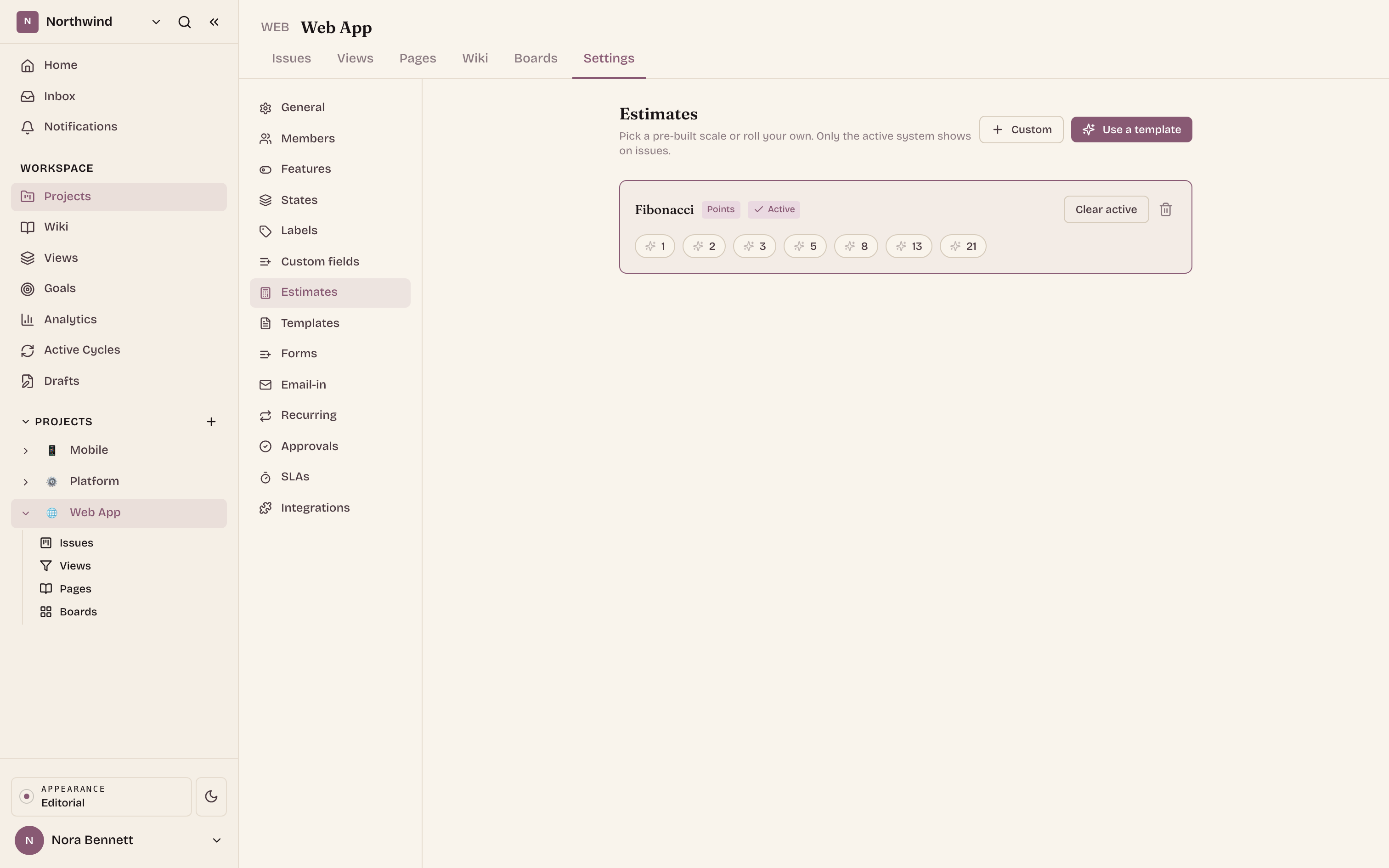
What it does
- Gives a project a named estimate system built from an ordered list of values.
- Supports three kinds of scale (called families):
- Numeric (points), for example Fibonacci
1, 2, 3, 5, 8, 13. - Qualitative (categories), for example T-shirt sizes
XS, S, M, L, XL. - Time (durations), for example
1h, 2h, 4h.
- Numeric (points), for example Fibonacci
- Lets you start from a ready-made template or build a custom system by hand.
- Lets you attach an icon to each value so the chip reads at a glance. Some templates also give their values a colour.
- Shows the active system's values on issues as estimate chips.
- Rolls up estimates into velocity and burndown. Numeric and time values roll up directly; category values carry a hidden numeric weight so they roll up too.
Only one estimate system is active per project at a time, and only the active one shows on issues. You can keep several systems defined and switch which one is active. Each issue points at a single value, so an issue keeps its estimate until you change it.
Set up estimates
Estimates are configured per project, in Project settings -> Estimates
(/{workspace}/projects/{projectId}/settings/estimates).
Any project member can create and edit estimate systems and their values. Deleting a system requires a project admin.
Start from a template
- Open Project settings -> Estimates.
- Click Use a template.
- Filter by family (All, Numeric, Qualitative, Time) and pick a scale. Each card previews its values.
- Click Use this scale to add it and make it the project's active system in one step, or Add without activating to add it for later.
The built-in templates are Fibonacci, Modified Fibonacci (Planning Poker), Linear 1-5, Linear 1-10, Powers of 2, and Squares (Numeric); T-shirt sizes (XS-XL), T-shirt sizes (XS-XXL), and Easy / Medium / Hard (Qualitative); and Hours and Days (Time).
Build a custom system
- Open Project settings -> Estimates.
- Click Custom.
- Give it a name, pick a family (Points (numeric), Categories (text),
or Time (durations)), optionally add a description, and enter the values
as a comma-separated list (for example
1, 2, 3, 5, 8, 13orXS, S, M, L, XLor1h, 2h, 4h). - Click Create. A system needs at least one value before it can be made active.
You can add, edit, and remove values on an existing system later from the same page.
Choose the active system
On the Estimates page, each defined system has a Set active button. Setting one active is what makes its values show up on issues. Use Clear active to stop showing estimates on new issues. A system with no values cannot be activated.
Customise value icons
Each value can carry an icon so the chip says something about size, effort, or duration:
- On the Estimates page, find the value under its system.
- Click the value's icon slot to open the icon picker.
- Pick a glyph from the grouped set (Size, Effort, Time, Generic), or clear it to show just the value.
Icons are drawn from a curated set. If a value has no icon, its colour dot (if set) or plain value is shown instead.
Where estimates appear
Once a project has an active estimate system, its values surface as estimate chips throughout the issue views:
- On issue rows in the list view.
- On board cards.
- In the issue detail panel, where you set or change the estimate by picking a value (or None to clear it).
Each chip shows the value's icon (when one is set) and its label, so a reader can scan sizing without opening the issue. You can set estimates on many issues at once from the Estimate menu in the bulk action bar in the issue list. You can also group or add swimlanes by estimate in the list and board views, which buckets issues by value with a catch-all group for issues that have none.
Troubleshooting
- Estimate chips do not show on issues. No system is active for the project. Open Project settings -> Estimates and click Set active on the system you want.
- A system will not activate. It has no values. Add at least one value, then set it active.
- A template you added is not on issues yet. Adding a template does not make it active unless you chose "Use this scale". Set it active from the Estimates page.
- An icon does not appear on the chip. The value has no icon assigned, or the icon was cleared. Open the value's icon picker and choose one.
- You changed the active system and old issues look different. Estimates are per-value on the active system; switching the active system changes which scale is shown. Pick the system that matches how the team sizes work, then keep it active.
- Deleting a system wiped estimates off issues. Deleting an estimate system removes it as the active system and clears its values from any issues that used them. If you only want to stop showing estimates, use Clear active instead of deleting the system.