Import from Linear
Bring a Linear team into an Ithura project. The importer reads a team's issues over Linear's API and re-creates each one as an Ithura issue, carrying across the title, description, comments, labels, assignee, priority, workflow state, and dates. Every run happens in the background and lands in the Recent imports list when it finishes.
Linear is one of several import sources. For the shared mechanics and the other sources, see the Imports overview.
Before you start
- A Linear API key. Create one in Linear under Settings, then API, then Personal API keys. This is your own key for your own Linear account, and you enter it per import (Ithura does not store a shared Linear connection).
- You do not need to create a destination project first: each Linear team you select imports into its own new Ithura project, named after it.
Step by step
Open Workspace settings -> Imports at /{workspace}/settings/imports, then
click Linear.
-
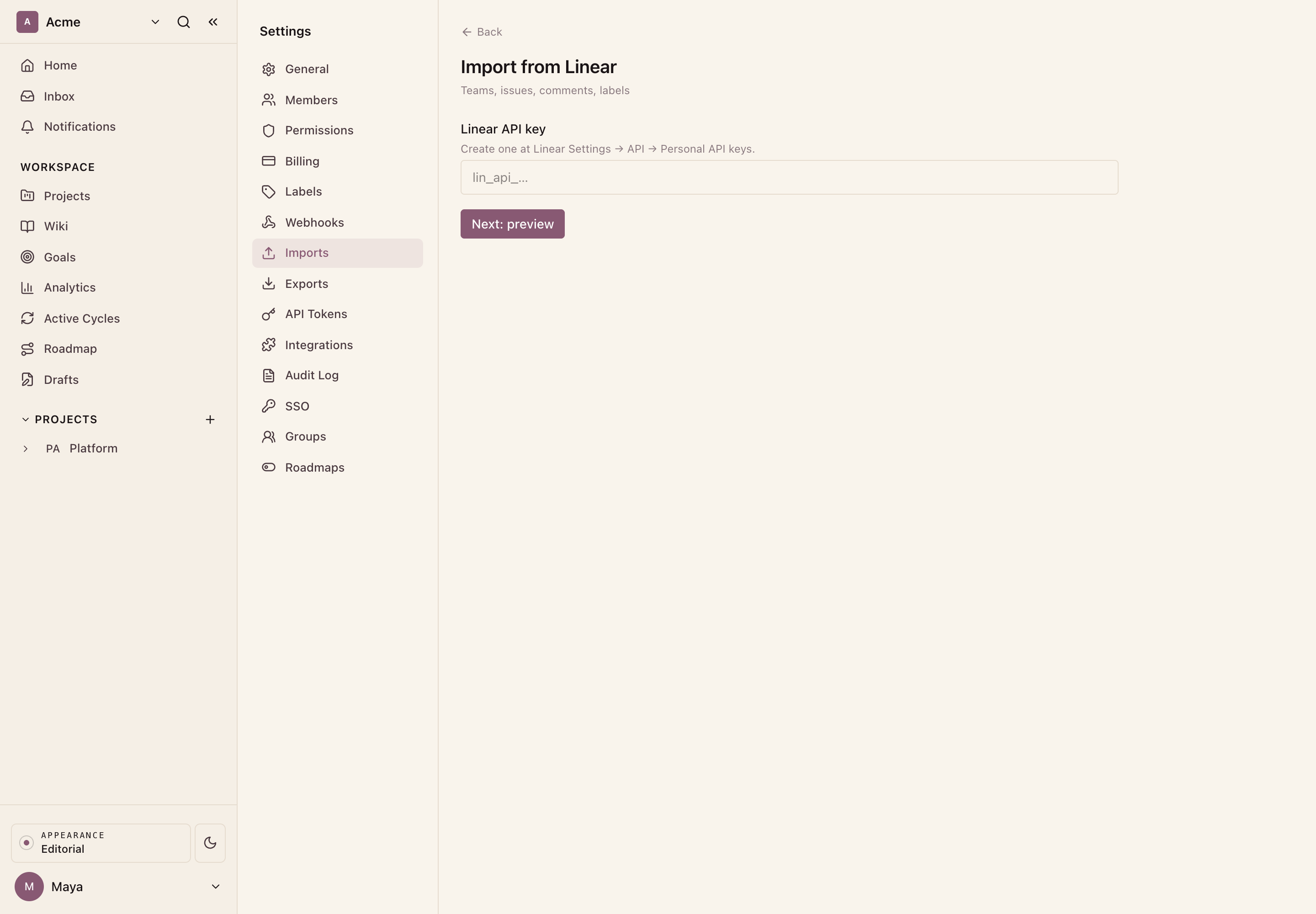
Connect. Paste your Linear API key and click Next: preview. Ithura validates the key and reads the teams it can see.
-
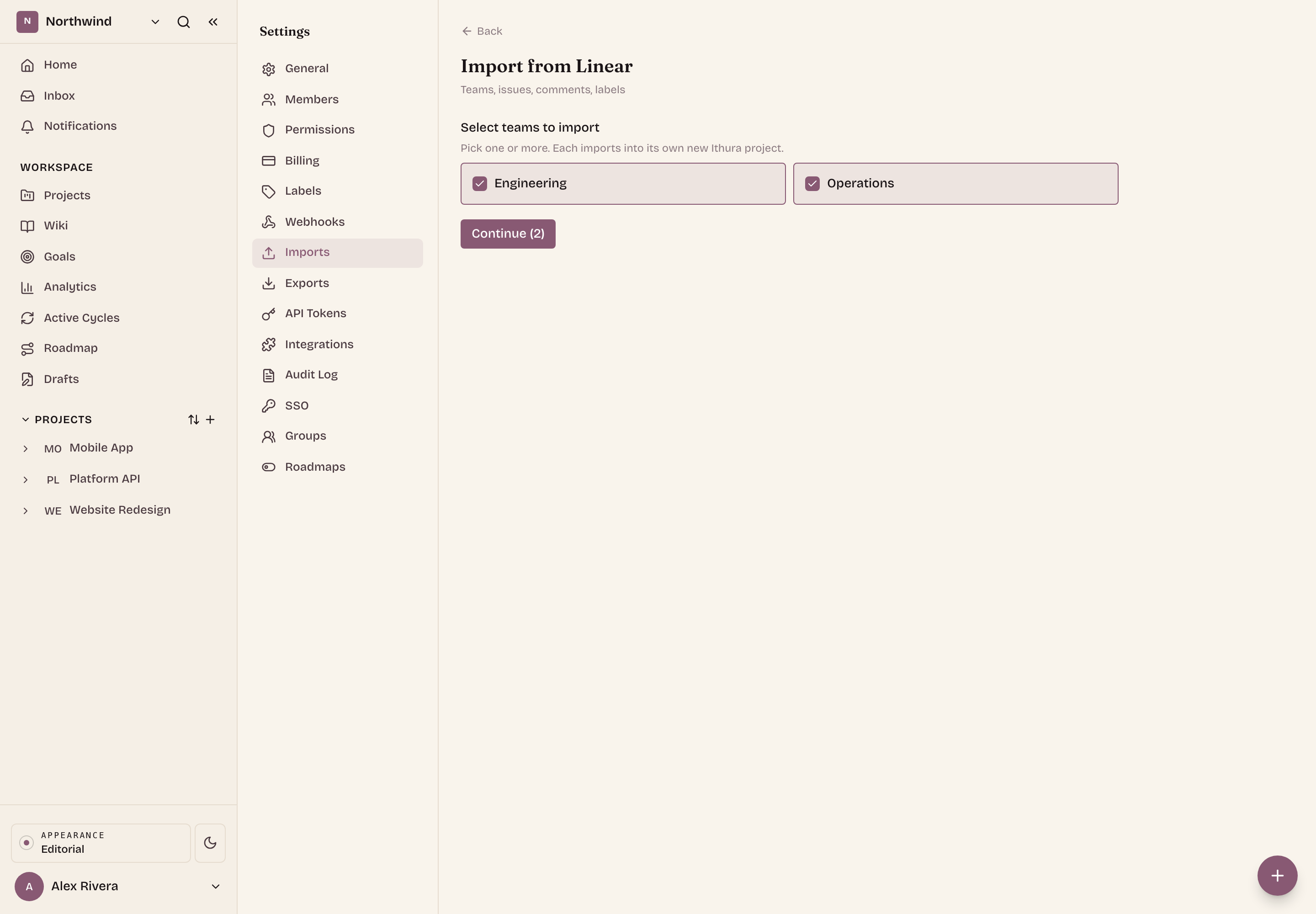
Select teams. The preview shows the teams the key can reach, each with a checkbox. Tick one or more. Every team you pick imports into its own new Ithura project, named after it, so you can move several teams across in a single run. Re-importing a team that already has a same-named Ithura project updates it in place rather than creating a duplicate. Click Continue.
-
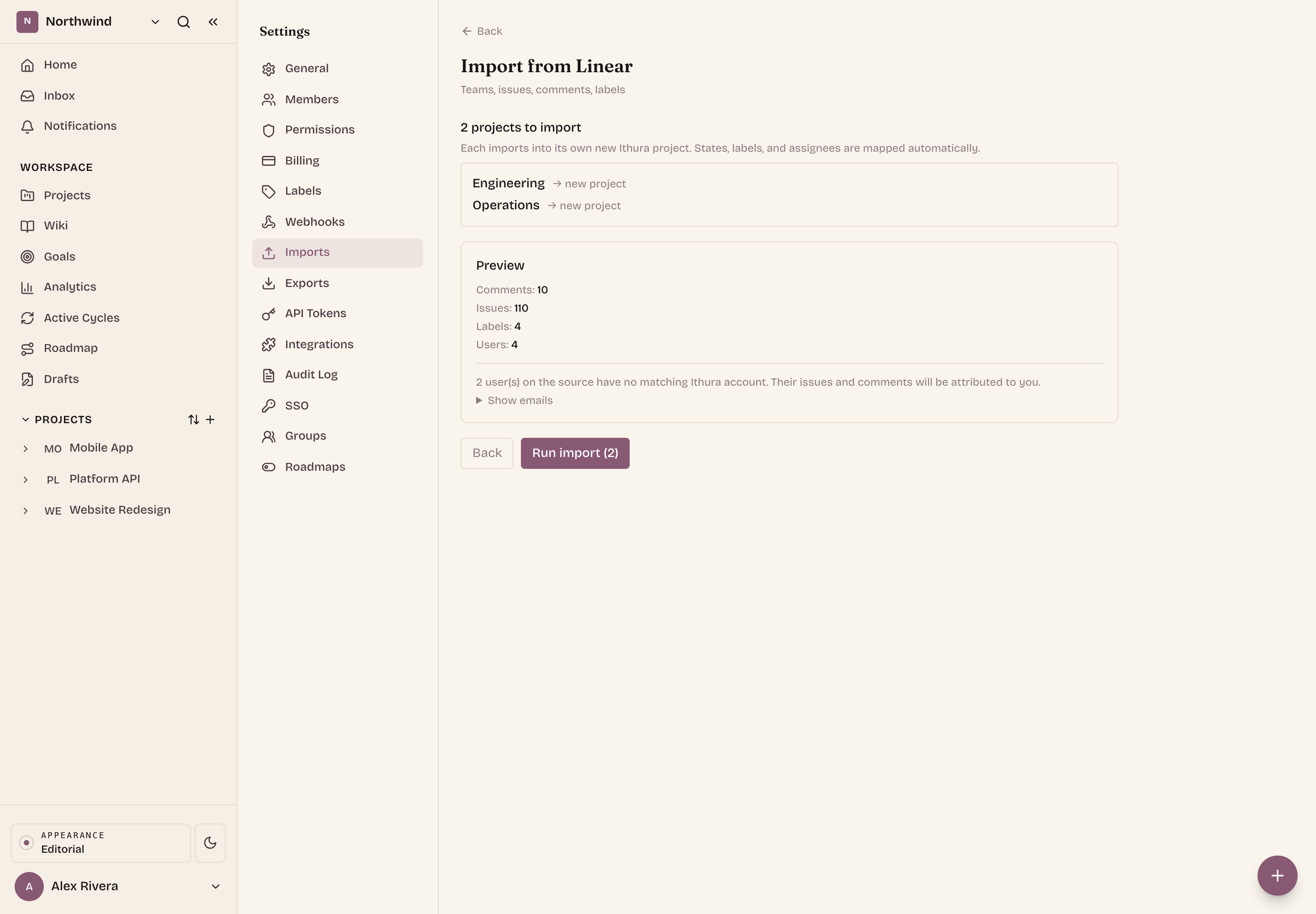
Review the combined preview. Ithura validates each selected team and shows the summed counts plus the union of members it found. Any member whose email has no matching Ithura account is listed as unmatched: their issues and comments will be attributed to you. When the totals look right, click Run import.
-
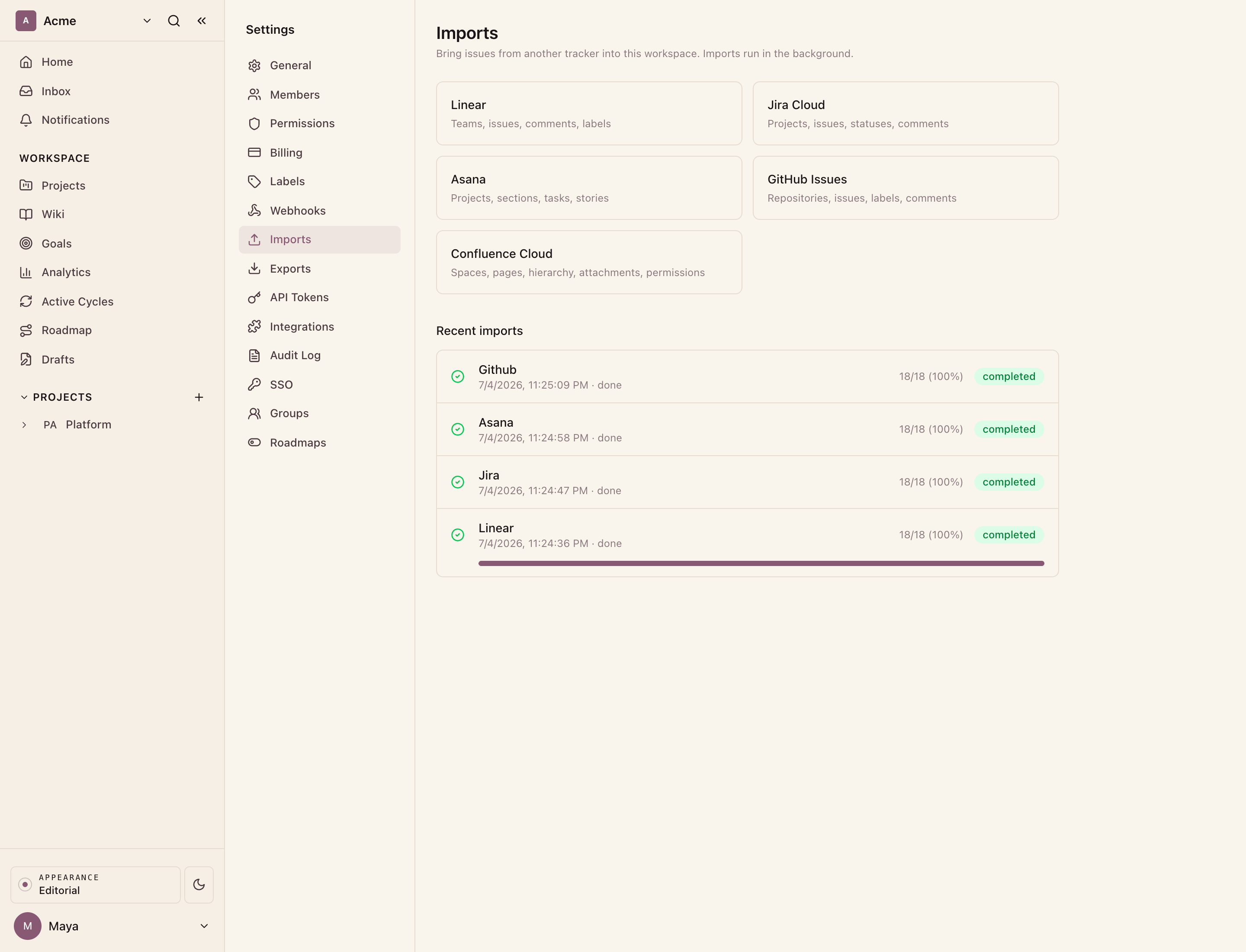
Watch it run. Each selected team starts as its own background job and appears at the top of Recent imports. It refreshes on its own, showing the status and how many issues have been processed. When every job reaches completed, the import is done.
What comes across
For each issue on the team, the importer maps:
- Issue. Title becomes the issue name and the Linear description becomes the Ithura description. Created date, completed date, and due date carry across.
- Comments. Each Linear comment is recreated with its body and creation time. The comment author is matched to an Ithura account by email where the address is available.
- Labels. Every label on the issue is applied, created in the destination project if it does not exist yet.
- Assignee. The assignee is matched to an Ithura account by email. If no workspace member has that email, the issue falls back to you (the person who ran the import).
- Workflow state. Linear's state type maps onto Ithura's state groups: backlog to backlog, unstarted to unstarted, started to started, completed to completed, and canceled to cancelled. Anything else falls back to backlog. The original state name is preserved.
- Priority. Linear's priority carries across: Urgent, High, Medium, and Low map to the matching Ithura priority, and No priority stays none.
Good to know
- Members are surfaced up front. The preview lists every team member with an email so you can see, before running, who will not match an Ithura account. Invite those people to the workspace with the same email first if you want their issues and comments attributed to them.
- Re-running is safe. Imports are idempotent: each issue is tracked by its Linear id, so re-running the same team creates no duplicates.
What is not imported
- Rich formatting beyond plain text.
- Sub-issue relationships, cycles, projects, and estimates.
- Attachments.
- Issues with more than 250 comments keep the first 250.
Troubleshooting
- The connection fails at Connect or Preview. The API key is wrong or lacks read access. Generate a fresh Personal API key in Linear and paste it again.
- No teams appear. The key can only see teams your Linear account belongs to. Use a key from an account that is a member of the team you want.
- Assignees are missing after the import. Those Linear members have no Ithura account with a matching email, so their issues were attributed to you. Invite them and reassign, or reassign by hand.
- A job is stuck pending or running. Expand it in Recent imports and click Cancel, then start a new import.