Wiki
The Wiki is a Confluence-style knowledge base built into Ithura. It gives each workspace a space of rich pages organised into collections and page trees, with search, inline and page-level comments, labels, templates, version history, public sharing, and collection-level permissions. Pages use the same block editor as project Pages, including panels, Mermaid diagrams, and embedded whiteboards.
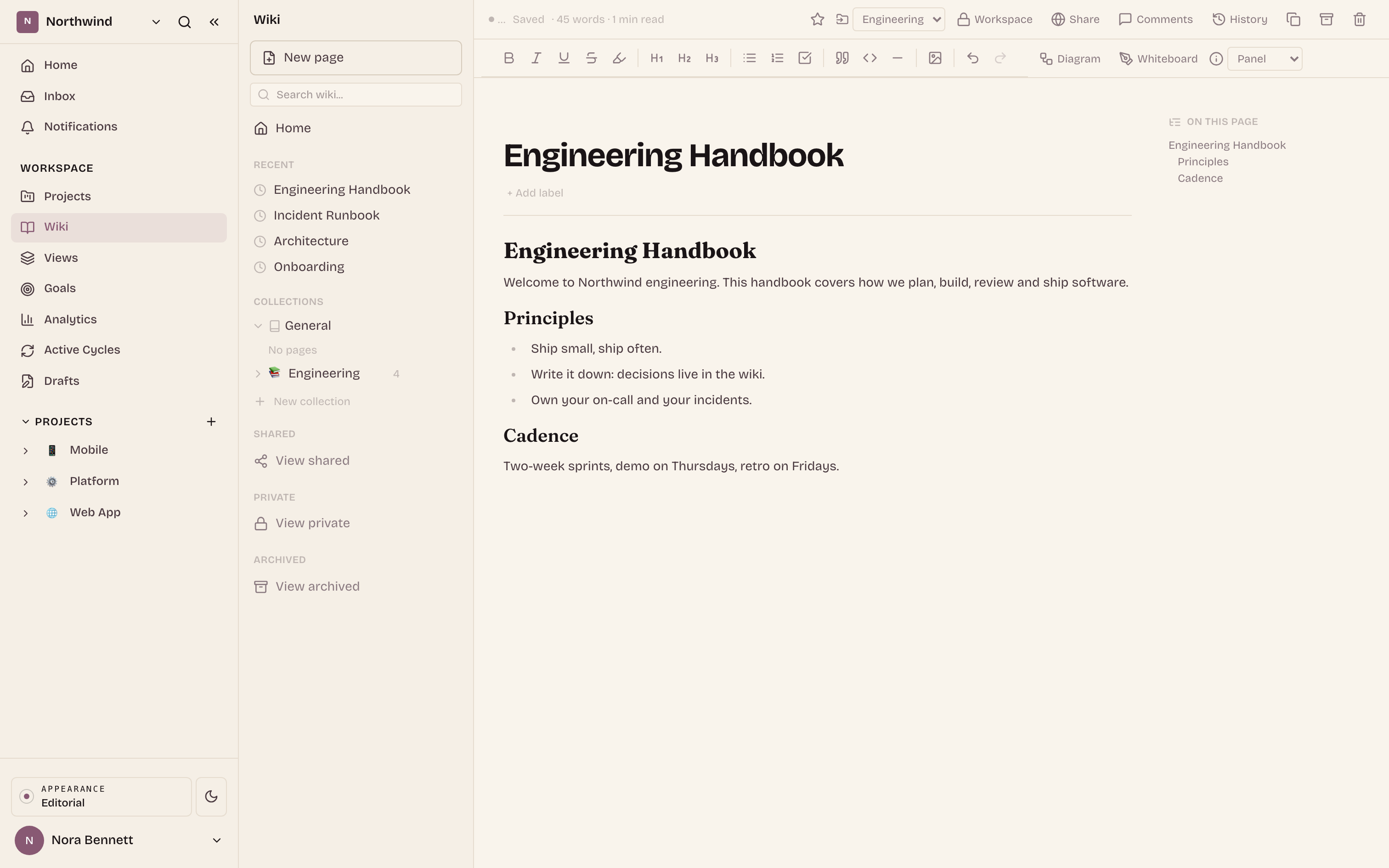
What it does
- A rich page editor with the same blocks as Pages: headings, lists, tables,
task lists, code blocks, images, links, callout panels (info / note /
success / warning / error), Mermaid diagrams, embedded whiteboards, issue
embeds,
@-mentions, and a/slash menu. - Nested collections and multi-level page trees in a left sidebar, with drag-to-reparent and add-child controls.
- Full-text search across the space, page labels, pinned pages, and a recent-pages list.
- Per-page actions: move to a collection, mark private, duplicate, save as a template, archive, delete, set an emoji icon, and toggle a public read-only share link.
- Version history per page, with restore.
- Inline comments: select any text to open an anchored discussion thread with
replies,
@-mentions, emoji reactions, and resolve / reopen. A margin rail marks every commented passage, and page-level comments cover the whole page. - Collection-level permissions: a collection is open (all space members) or restricted, with per-member and per-group grants.
- Reusable page templates: start a new page from a built-in template or one you saved yourself.
Where it lives
The Wiki is a workspace-level space, reached at /{workspace}/wiki. It opens on
its home view. Individual pages are at /{workspace}/wiki/pages/{pageId}. The
sidebar also has Shared, Private, and Archived views.
Projects do not have a separate wiki space. Project documentation lives in
project Pages, and the older /{workspace}/projects/{project}/wiki route now
redirects there.
The wiki sidebar
The left column has:
- New page opens a template picker: start from a blank page, from a built-in template, or from one of your own saved templates. The new page is created in the default collection and opened.
- Search wiki filters pages by title and body once you type at least two characters. Selecting a result opens the page.
- Home is the space landing view.
- Pinned and Recent list pages you pinned or opened recently.
- Collections lists every collection, each expandable to its page tree.
- Shared, Private, and Archived are filtered views of the space.
The default collection is opened automatically on load, so its pages are visible without a manual click.
Working with collections
A collection is a named group of pages with its own page tree. Every space has a default collection that cannot be deleted.
- Create a collection: in the sidebar, click New collection under the Collections heading and enter a name.
- Rename: hover a collection and click the pencil icon.
- Set an emoji icon: click the book / icon to the left of the collection name and enter an emoji (leave blank to clear).
- Delete: hover a non-default collection and click the trash icon. Deleting a collection does not delete its pages. The default collection cannot be deleted.
- Add a page: click the plus on a collection to add a top-level page, or the plus on a page row to add a child page.
The page tree
Inside a collection, pages form a parent / child tree:
- Expand or collapse a page with the chevron to its left.
- Reparent a page by dragging it onto another page (to nest it) or onto the collection header (to make it a top-level page).
- Add a child with the plus that appears when you hover a page row.
Writing a page
Open a page to edit it. The page has a title, an optional emoji icon, breadcrumbs to its ancestors, labels, the editor body, and a live "On this page" table of contents built from your H1 to H3 headings.
Use the formatting toolbar for text styling and the block inserts for richer content:
- Diagram inserts a Mermaid code block that renders live. Edit the source and the render updates.
- Whiteboard inserts an embedded Ithura board you can draw on inline. Each whiteboard block is backed by its own board document.
- Panel inserts a callout in one of five variants: info, note, success, warning, or error.
- The
/slash menu offers the same blocks inline as you type.
Add labels with the "+ Add label" field under the title, and pin a page with the pin button to keep it in the Pinned list. The action bar shows a running word count and reading-time estimate for the page.
How saving works
The wiki editor saves your edits with explicit REST writes, not by relying on live collaboration sync. This matters for how content persists:
- When you open a page, the editor loads the stored content once and seeds the document. A ready guard blocks any save until that stored content has loaded, so an empty editor can never overwrite what was saved.
- As you type, edits are saved on a short debounce. The header shows "Saving…" while a write is in flight and "Saved" once it completes.
- Edits are also flushed when you hide the tab, navigate away, or reload, and periodically in the background. These flushes are not gated on collaboration sync.
- Reloading the page shows the last saved content.
The header also shows a "Live" indicator when the collaboration socket is connected, and other editors' cursors appear while they are on the page. Persistence does not depend on that connection: saves are the REST writes described above, so your content is retained even if the live socket never connects.
Permissions
Wiki access is controlled at two levels: the collection and the individual page. For the complete layered model (spaces, collections, private pages, public share links, and the exact rule a viewer must pass), see the Wiki access model reference.
Collection access
Each collection is either open or restricted:
- Open: every member of the workspace can see the collection and its pages.
- Restricted: only the collection's creator, workspace admins, and the people and groups you grant can see it.
To manage a collection's access, hover the collection in the sidebar and click the lock icon (shown when you can manage the collection). In the Access dialog:
- Choose Open or Restricted.
- While restricted, add individual people with the "Add a person" picker.
- Under Groups, add a whole group at once with the "Add a group" picker. Granting a group grants the collection to every member of that group, which is how you give a team access in one step.
- Remove any grant with its trash icon.
If a collection is restricted with no grants, only you and admins can see it until you add people or groups.
Page access
An individual page can be made private independent of its collection. On the page, use the Workspace / Private toggle in the action bar:
- Workspace (the default): the page follows normal space visibility.
- Private: only the owner, admins, and explicitly granted users can open it. When a page is private, an Access button appears so you can manage its per-user grants.
Public sharing
Toggle Share on a page to create an anonymous, read-only public link. The
shared page is served at /p/{anchor} and renders without a login. Toggle
Share off to disable the link. Only a member who can edit the page may share
it.
Comments and inline discussion
Every wiki page has a comments panel, opened with Comments in the action bar. Comments come in two kinds:
- Inline (anchored) comments are tied to a specific passage. Select any text in the page and choose Comment from the small bubble that appears, or use the comment affordance at the end of the line your cursor is on. The passage is highlighted and the thread stays attached to that text as the page is edited.
- Page-level comments are about the page as a whole. Add one from the composer at the bottom of the panel.
Threads, replies, mentions, and reactions
- Reply within a thread to keep a discussion together.
- Type
@in any comment or reply to mention a teammate. Mentioned people are notified, including when you add a mention while editing an existing comment. - React to a comment with an emoji from its reaction row, and click a reaction again to remove yours.
- Edit or delete your own comments from the comment's overflow menu, or copy a direct link to a thread.
Finding and resolving comments
- Commented passages are underlined in the page, and a thin marker rail in the right margin shows one dot per open thread. Click a highlight or a dot to open the panel and jump to that thread.
- Resolve a thread once it is handled: resolved threads collapse out of the way and can be reopened. Use the filter at the top of the panel to switch between Open, Resolved, and All, and the sort control to order by newest or oldest.
- If the text a comment was anchored to is later removed, the thread is kept and shown as a comment on removed text so the discussion is not lost.
On a narrow screen the panel opens as a bottom sheet you can drag down to dismiss.
Version history and other actions
The page action bar also gives you:
- History: open version history and restore an earlier version. Restoring loads that version's content back into the editor.
- Comments: open the comments panel to read and add page and inline comments (see "Comments and inline discussion" above).
- Duplicate: create a copy of the page and open it.
- Save as template: save the current page's content as a reusable template, then create new pages from it through the New page menu.
- Move to collection: the collection dropdown in the action bar moves the page into another collection.
- Archive and Delete: archive removes the page from the tree into the Archived view; delete removes it after a confirmation.
Troubleshooting
- I opened a project wiki link and landed on Pages. Projects no longer have
a separate wiki. The
/{workspace}/projects/{project}/wikiroute redirects to project Pages, where project documentation lives. The workspace wiki is at/{workspace}/wiki. - A collection is empty after reload. The default collection opens and loads automatically; other collections load their page tree the first time you expand them. Expand the collection to load its pages.
- A restricted collection shows no pages to a teammate. A restricted collection is visible only to its creator, admins, and granted people or groups. Grant the person, or add their group, in the collection Access dialog.
- Edits seem not to save. The header shows "Saving…" then "Saved" on each write. If you edited immediately on load, the ready guard waits for the stored content to load before enabling saves, so give the page a moment after opening before checking. Reloading shows the last saved content.
- The "Live" indicator stays off. That indicator reflects only the real-time collaboration socket. Saving does not depend on it: your edits are still written and retained through the REST saves.
- I can't find a way to comment on specific text. Select the text you want to discuss and a small Comment bubble appears; you can also use the comment affordance at the end of the line your cursor is on. Passages that already have comments are underlined and marked by dots in the right margin.