Notifications inbox
The inbox is a single place that gathers everything asking for your attention in a workspace: mentions, updates on issues assigned to you, and activity on issues you subscribe to. It is inbound only: reading and triaging here does not post anything back to an issue.
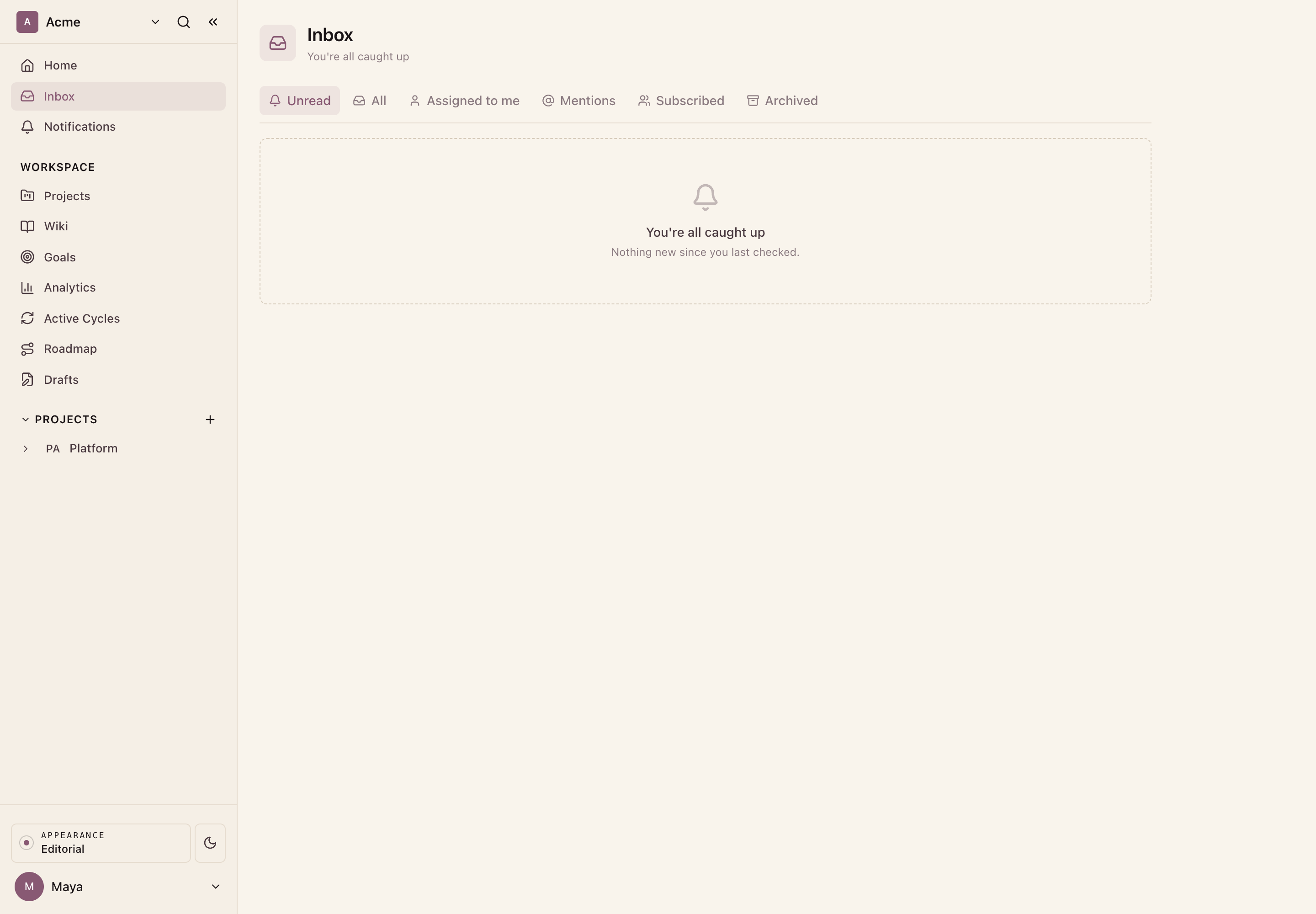
Where it lives
- Route:
/{workspace}/inbox(the "Inbox" item in the workspace sidebar). - The sidebar item carries an unread badge, so you can see when something new has arrived without opening it.
- The bell in the top bar opens the same notifications in a quick popover, so you can glance at recent items and jump to the full inbox from there.
What generates a notification
Notifications come from activity on issues you follow, plus any time you are @mentioned. You get a notification when:
- Someone comments on an issue you follow.
- Someone @mentions you, in an issue description, an issue comment, or a comment on a wiki page.
- An issue you follow changes: its state, priority, title, description, assignees, or labels.
- An issue you follow is added to or removed from a cycle or a module.
- Other activity on an issue you follow, such as links or relations being added or removed, a reaction, or the issue being archived or restored.
You never get a notification for your own action: the person who made the change is always excluded from its recipients.
Subscriptions
"Following" an issue means you are one of its subscribers. Activity on that issue then reaches your inbox.
You are subscribed automatically when you:
- Create the issue.
- Are assigned to the issue.
- Are @mentioned in the issue's description or in one of its comments.
You can also subscribe or unsubscribe by hand from the issue itself, using the subscribe control on the issue. Unsubscribing stops future activity on that issue from reaching your inbox; mentions still notify you, because a mention adds you back as a subscriber.
Choosing what you get notified about
Profile settings has a Notifications tab (Settings -> Notifications) with
per-category toggles:
- Property changes (priority, assignee, labels, and similar fields).
- State changes.
- Comments.
- Mentions.
- Issue completed (when a followed issue moves to a completed state).
Turning a category off stops both the in-app inbox notification and the matching email notification for that category. With no preferences saved, every category is on.
What appears
Each row is one notification: the actor's name and avatar, a short clause for what they did, the issue it is about, a preview of the change (an old-to-new value, or a comment snippet), how long ago it arrived, and a small tag naming the kind of thing it points at (for example issue, mention, or page). Unread rows are marked with a dot. Clicking a row marks it read and, when the notification points at something openable, takes you straight to that issue, cycle, module, page, or project.
Filters
A pill row at the top switches what the list shows:
- Unread (the default): everything you have not read yet, with the unread count. Snoozed items are hidden here until their snooze time passes.
- All: the full inbox (archived items excluded).
- Assigned to me: activity on issues you are assigned to.
- Mentions: notifications where someone @mentioned you.
- Subscribed: activity on issues you subscribe to.
- Archived: notifications you have archived.
Actions
Per row (hover to reveal the buttons):
- Mark read / Mark unread: toggle the read state.
- Snooze: hide the notification until later. The options are 1 hour, Tomorrow (next morning), and Next week. A snoozed row shows a "Snoozed" tag.
- Archive / Unarchive: move a notification out of the active list, or bring it back from the Archived filter.
Across the whole list:
- Mark all read: clears the unread state for the current filter (offered when you have unread items and are not viewing Archived).
Bulk triage:
- Select rows with the checkboxes to reveal a bar with "Select all visible", "Mark read", and "Archive" for the selected set.
Keyboard shortcuts (when focus is not in a text field):
j/k: move down / up the list.u: toggle read/unread on the focused row.e: archive the focused row.Enter: open the focused notification.Cmd/Ctrl+Delete(orBackspace): delete the focused notification.
Empty states
Each filter has its own empty message, for example "You're all caught up" on Unread, "No mentions" on Mentions, and "No subscriptions" on Subscribed, so an empty list tells you which stream is quiet rather than looking broken.
Troubleshooting
- The sidebar badge shows a count but the list looks empty: you are probably on a filter that hides those items. Switch to All or Unread.
- Clicking a row does not navigate: not every notification points at an openable entity. Rows without a linked issue, cycle, module, page, or project still mark themselves read but have nowhere to go.
- A notification disappeared: check the Archived filter, or the Snoozed tag on the row. Snoozed items return on their own once the snooze time passes.
- You expected a notification and did not get one: check that you follow the issue (subscribers and assignees are notified, no one else) and that the matching category is still on under Settings -> Notifications. You are never notified about your own changes.
- Long lists: the inbox loads in pages. Use "Load more" at the bottom to fetch older notifications. </content>