Slack
Ithura's deepest chat integration. Direction: bidirectional. It drives channel notifications, the /ithura slash command, and Asks intake.
What it does
- Notifications: posts issue updates into a channel.
- Slash command: runs
/ithurafrom Slack. - Asks intake: lets anyone file and follow up on requests from Slack without an Ithura account. See the Asks intake guide for the full intake story.
Connect (workspace admin)
Workspace settings -> Integrations -> Connect Slack. This runs the OAuth install and stores the bot token for your workspace. If you see "Slack is not configured on this instance", the integration has not been enabled for your instance yet.

Configure per project
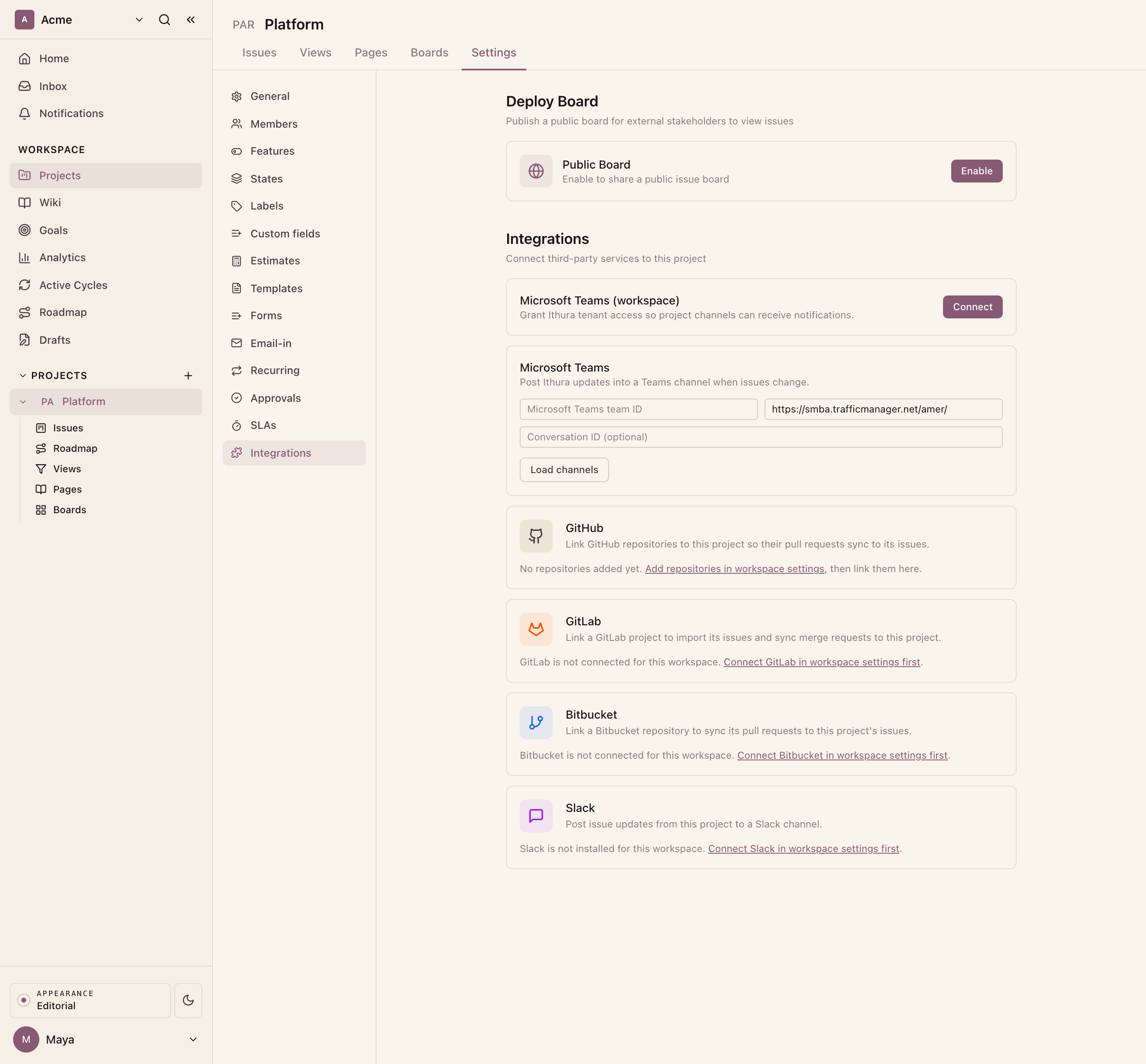
Project settings -> Integrations -> Slack:
- Pick the channel to sync.
- Optionally enable Asks intake and set the trigger emoji (default
:ticket:). - Invite the bot to the channel in Slack:
/invite @ithura. The bot must be a channel member to receive reactions and messages.
Using it
- Issue updates for the project post into the chosen channel.
- Run
/ithurain Slack to act on Ithura from chat. - With Asks intake on, reacting to a message with the trigger emoji files a request. Replies the team shares thread back to the submitter (only updates explicitly marked as external reach the Slack thread; internal triage comments stay in Ithura). The captured message is linked from the issue by a clickable "View in Slack" button. Clicking a confirmation's "Edit details" button after the issue was deleted shows a short "Request unavailable" modal. The Asks intake guide covers the full flow.
Troubleshooting
- "Slack is not configured on this instance": the integration has not been enabled for your instance yet.
- Reactions or mentions do nothing: the bot is not in the channel. Run
/invite @ithura.