Import from Jira
Bring a Jira Cloud project into an Ithura project. The importer reads a project's issues over the Jira REST API and re-creates each one as an Ithura issue, carrying across the summary, description, comments, labels, assignee, priority, status, and dates. Every run happens in the background and lands in the Recent imports list when it finishes.
Jira is one of several import sources. For the shared mechanics and the other sources, see the Imports overview.
Before you start
Jira needs three things, all belonging to the same Atlassian account:
- The site URL, for example
https://acme.atlassian.net. - The account email you sign in to Jira with.
- An API token. Generate one at id.atlassian.com, under Security, then API tokens.
These are your own credentials for your own Jira account, entered per import (Ithura does not store a shared Jira connection). You do not need to create a destination project first: each Jira project you select imports into its own new Ithura project, named after it.
Step by step
Open Workspace settings -> Imports at /{workspace}/settings/imports, then
click Jira Cloud.
-
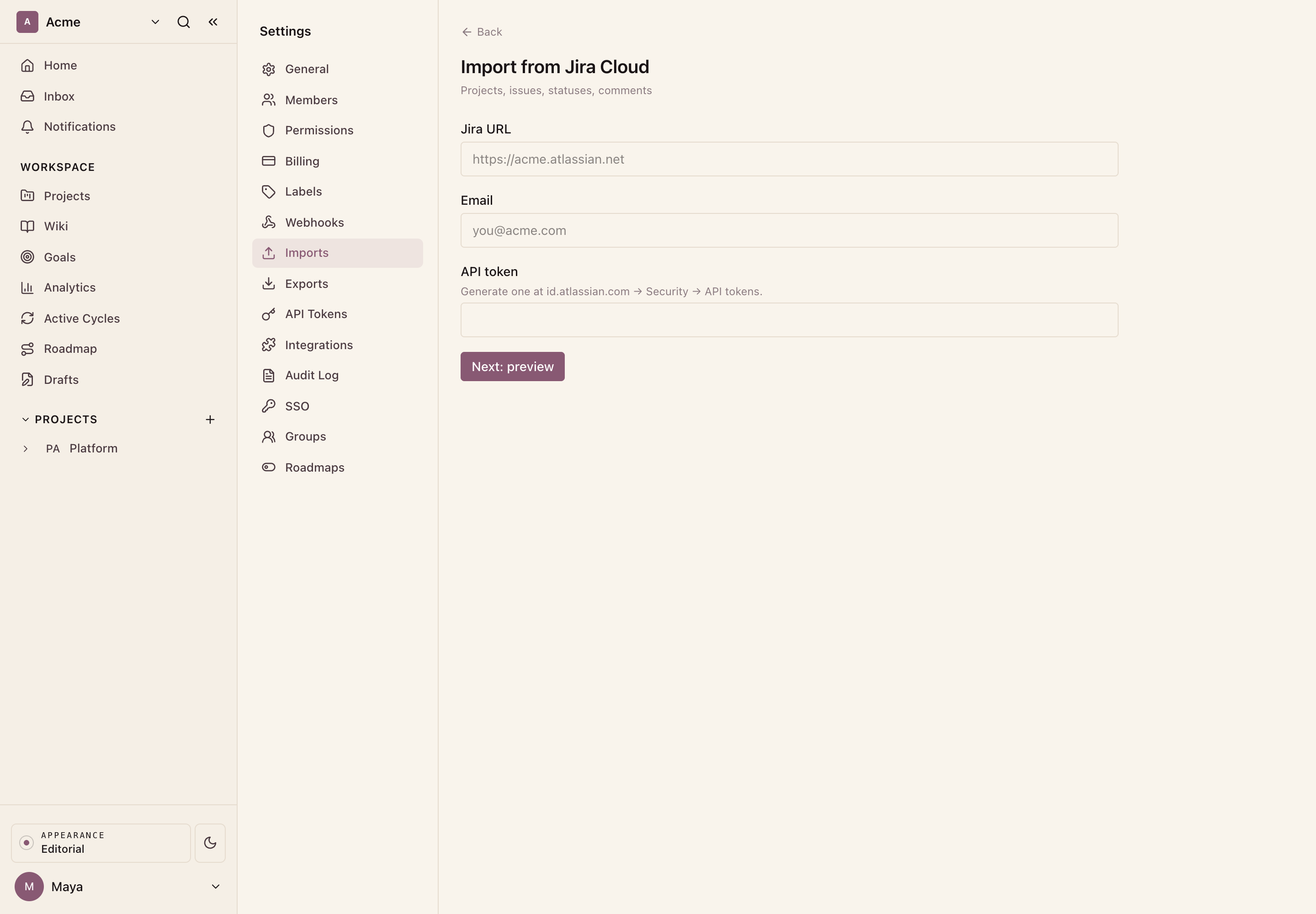
Connect. Enter your Jira URL, your email, and your API token, then click Next: preview. Ithura signs in with those credentials and reads the projects it can see.
-
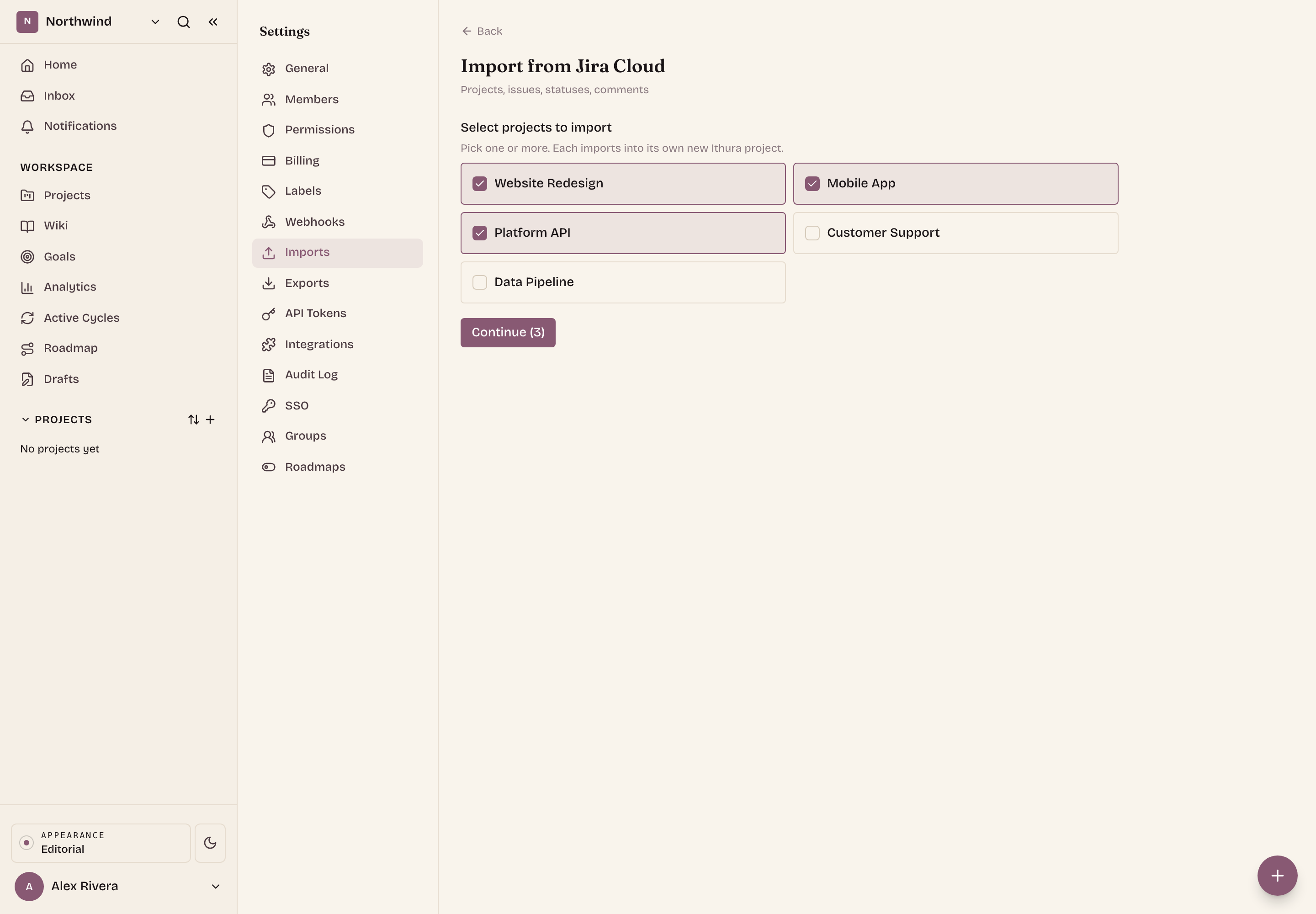
Select projects. The preview lists the Jira projects the account can reach, each with a checkbox. Tick one or more. Every project you pick imports into its own new Ithura project, named after it, so you can move several projects across in a single run. Re-importing a project that already has a same-named Ithura project updates it in place rather than creating a duplicate. Click Continue.
-
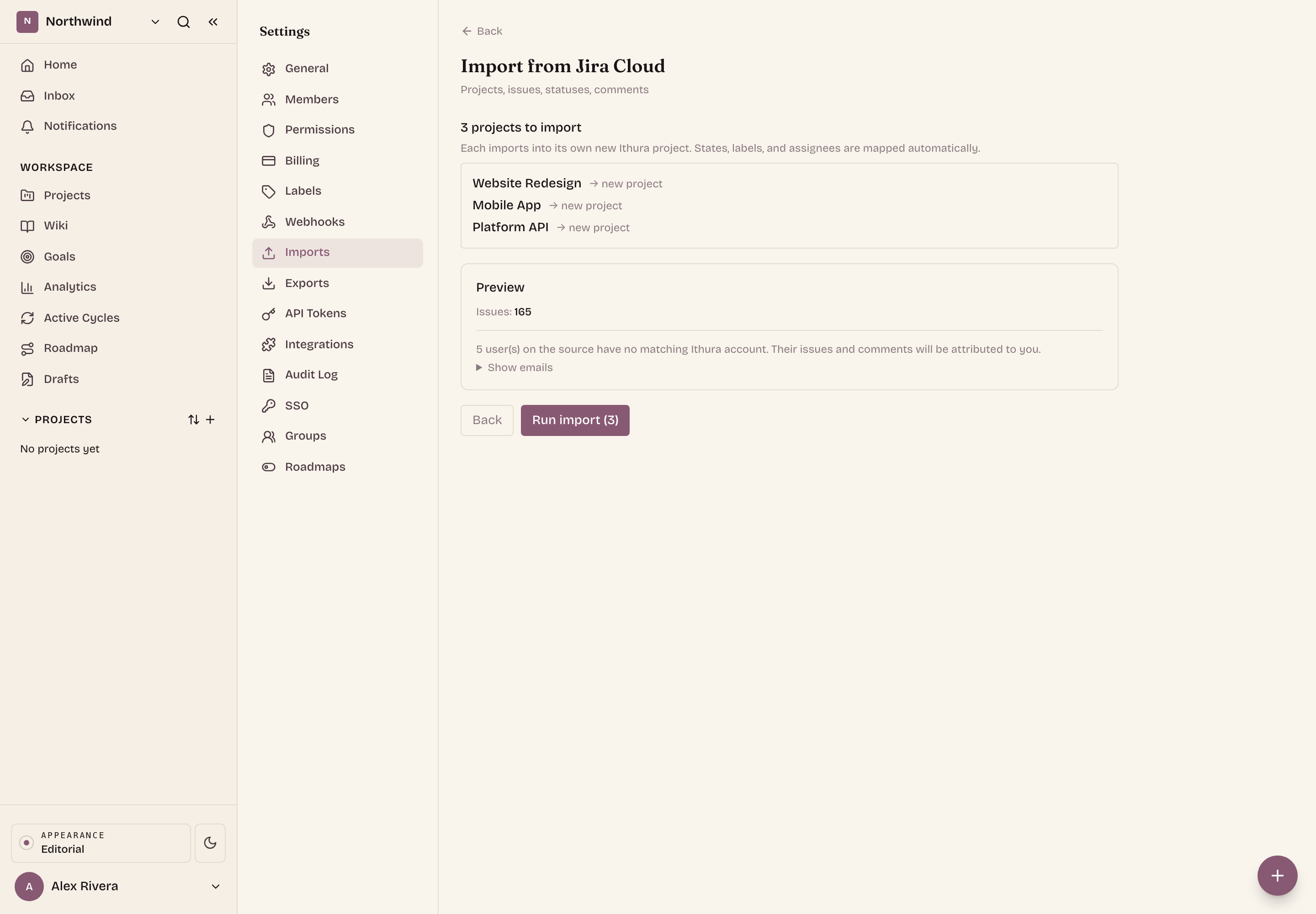
Review the combined preview. Ithura validates each selected project and shows the summed issue count plus the union of assignable users it found. Any user whose email has no matching Ithura account is listed as unmatched: their issues and comments will be attributed to you. When the totals look right, click Run import.
-
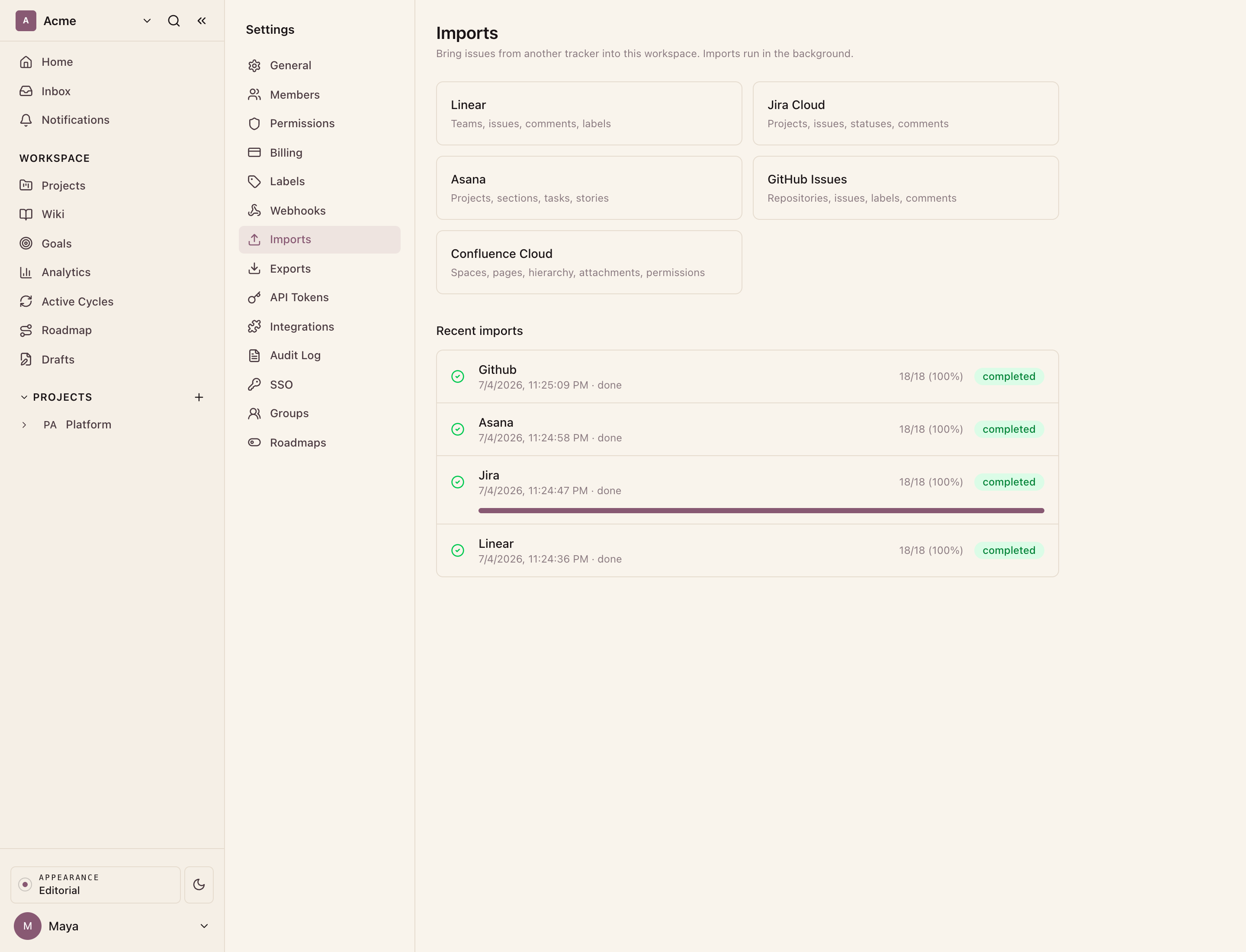
Watch it run. Each selected project starts as its own background job and appears at the top of Recent imports, refreshing on its own with the status and how many issues have been processed. When every job reaches completed, the import is done.
What comes across
For each issue in the project, oldest first, the importer maps:
- Issue. The summary becomes the issue name. The description carries across as text: Jira stores rich descriptions in Atlassian Document Format, and the importer flattens that formatting to plain text. Created date, resolution date (as the completed date), and due date carry across.
- Comments. Each Jira comment is recreated with its body (also flattened from rich text to plain text) and creation time. The comment author is matched to an Ithura account by email where the address is available.
- Labels. Every label on the issue is applied, created in the destination project if it does not exist yet.
- Assignee. The assignee is matched to an Ithura account by email. If no workspace member has that email, the issue falls back to you.
- Status. Jira's status category maps onto Ithura's state groups: "To Do" (new) to backlog, "In Progress" (indeterminate) to started, and "Done" to completed. Anything else falls back to backlog. The original status name is preserved.
- Priority. Jira's priority carries across: Highest, Blocker, and Critical map to Urgent, High to High, Medium to Medium, and Low, Lowest, and Trivial to Low. Anything else becomes none.
Good to know
- Rich formatting becomes plain text. Descriptions and comments are flattened from Atlassian Document Format, so tables, panels, and inline styling arrive as readable text without the original layout.
- Assignable users are surfaced up front. The preview lists the project's assignable users with an email so you can see who will not match an Ithura account before running. Invite them to the workspace with the same email first if you want their work attributed to them.
- Re-running is safe. Imports are idempotent: each issue is tracked by its Jira key, so running the same import again updates nothing and creates no duplicates. A run that was interrupted can simply be run again.
What is not imported
- Rich formatting. Descriptions and comments arrive as plain text, not Ithura rich text (tables, panels, and code blocks are flattened).
- Reporter, issue type, sub-tasks, epic links, and custom fields.
- Attachments.
Troubleshooting
- The connection fails at Connect or Preview. The site URL, email, and API
token must all belong to the same Atlassian account. Re-check the URL (it
should be your full
https://…atlassian.netsite), confirm the email is the one you sign in with, and generate a fresh API token if needed. - The URL is rejected. The site URL must be a valid
httporhttpsaddress with a host. Paste the site's base URL without a trailing path. - No projects appear. The account can only see projects it has access to. Use credentials for an account that is a member of the project you want.
- Assignees are missing after the import. Those Jira users have no Ithura account with a matching email, so their issues were attributed to you. Invite them and reassign, or reassign by hand.
- A job is stuck pending or running. Expand it in Recent imports and click Cancel, then start a new import.