Every team accumulates knowledge that does not belong in an issue: how the product works, how to onboard, the decision behind a design, the runbook for an outage. Scattered across chat and personal docs, that knowledge goes stale and stays hard to find. The Wiki gives it a home inside Ithura, right next to the work it describes.
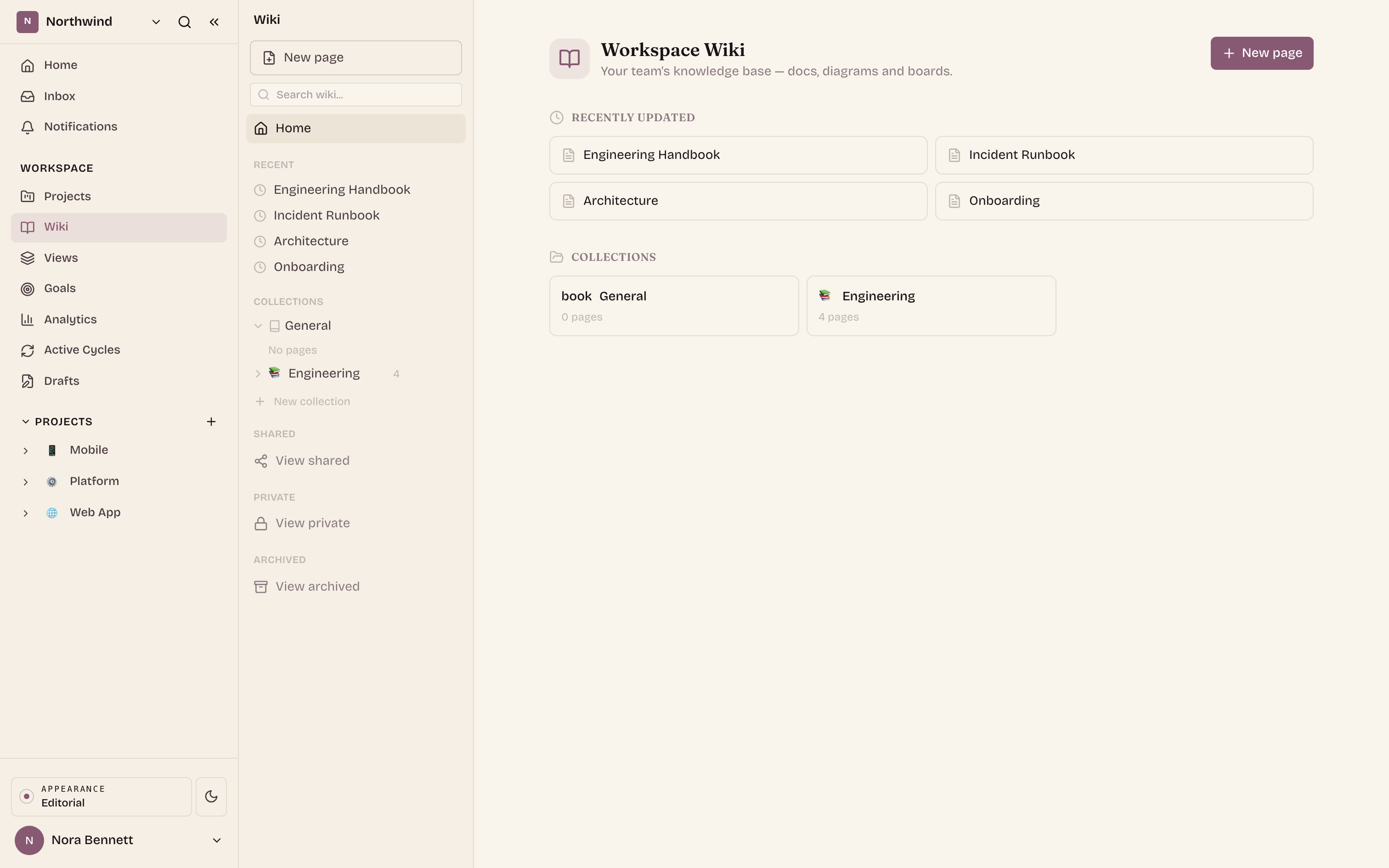
It is a Confluence-style knowledge base built into the product. Pages use the same rich editor as project Pages, they nest into collections and trees, they link and search across the whole space, and access is controlled at the collection and the page. Here is how it fits together.
The shape of it
Write pages with the full block editor
Headings, tables, task lists, code, callout panels, Mermaid diagrams, and embedded whiteboards. The same blocks you already use in Pages.Organize them into collections and trees
Group pages into named collections, nest them into parent and child trees, and reparent by dragging. Backlinks and search tie the space together.Control who can see what
Make a collection open to everyone in the space or restricted to the people and teams you grant. Flip an individual page to private on top of that.Keep a space per workspace and per project
Every workspace has a wiki. Each project can have its own wiki space on the Pro plan, scoped to that project's members.
One editor, every block
A wiki page is not a stripped-down text field. It is the same block editor as project Pages, so the things you already build there work here unchanged.
- Rich blocks: headings, lists, tables, task lists, code blocks, images, links, and callout panels in five variants (info, note, success, warning, error).
- Diagrams: a Mermaid block renders live as you edit the source, so architecture and flow charts stay in the doc.
- Whiteboards: embed an Ithura board and draw on it inline. Each whiteboard block is backed by its own board document.
- Connective tissue: `@`-mentions, issue embeds, a `/` slash menu for inserting any block, plus labels, favorites, comments, and version history with restore.
Open a page and you get a title, an optional emoji icon, breadcrumbs to its ancestors, and a live "On this page" table of contents built from your headings. The mockup below shows all of it, with the collection Access dialog open over the page.
Handbook / Getting started
Onboarding
Welcome to the team. This page walks you through your first days, who to meet, and where the important docs live.
Diagram
Whiteboard
Collections and trees
Pages live in collections: named groups, each with its own page tree. Every space has a default collection that opens automatically and cannot be deleted, so there is always somewhere for a new page to land.
Inside a collection, pages form a parent and child tree. Expand a branch with its chevron, add a child from the plus on any row, and reparent a page by dragging it onto another page (to nest it) or onto the collection header (to lift it back to the top level). Deleting a collection leaves its pages intact.
Permissions, at two levels
Access is controlled where it makes sense: on the collection, and on the individual page.
Collection access: open or restricted
A collection is either open, visible to every member of the space, or restricted, visible only to its creator, workspace admins, and the people and groups you grant. The real power is the group grant: add a team once and every member of that team gets the collection, which is how you give a whole team access in a single step. Switch channels below to compare the two states.
Switch with the tabs (or the arrow keys). Open shares the collection with everyone in the space. Restricted narrows it to named people and teams.
Every member of the space can see this collection and its pages. No grants to manage.
Page access: workspace or private
On top of the collection setting, any single page can be made private with the Workspace / Private toggle in its action bar. Workspace (the default) follows normal space visibility. Private limits the page to its owner, admins, and explicitly granted users, and an Access button appears so you can manage those per-user grants. A page can be locked down even when its collection is open.
A space per workspace, and per project
There are two kinds of wiki space, with the same layout and features. The workspace wiki lives at /{workspace}/wiki and is always available. Each project can also have its own project wiki at /{workspace}/projects/{project}/wiki, scoped to that project's members.
How saving actually works
Notes are only useful if they are still there when you come back. The wiki editor is deliberate about persistence, and it is worth stating plainly, because it does not work the way a live-collaboration editor does.
- Deterministic REST saves: your edits are written with explicit REST calls, not by relying on the live collaboration socket. The header shows "Saving" while a write is in flight and "Saved" once it lands.
- A ready guard: when you open a page, the editor loads the stored content once and blocks any save until that content has loaded. An empty editor can never overwrite what was saved.
- Flushed at the right moments: saves fire on a short debounce as you type, and are also flushed when you hide the tab, navigate away, or reload, plus periodically in the background.
- Reload shows your content: because persistence is the REST write and not the socket, reloading a page shows the last saved version every time.
A "Live" indicator appears when the collaboration socket is connected, and other editors' cursors show while they are on the page. That is a presence signal, not the thing that saves your work. If the live socket never connects, your content is still written and retained through the REST saves above.
Your words are saved because the editor writes them, not because a socket happened to be connected.
Why it works
The Wiki keeps knowledge where the work is, in an editor your team already knows, organized into trees anyone can navigate, and searchable across the space. Collections and per-page controls let you keep the right things open and the sensitive things closed, granting a whole team in one step. And a save model built on deterministic writes means the one thing a knowledge base must never do, lose what you wrote, does not happen here.