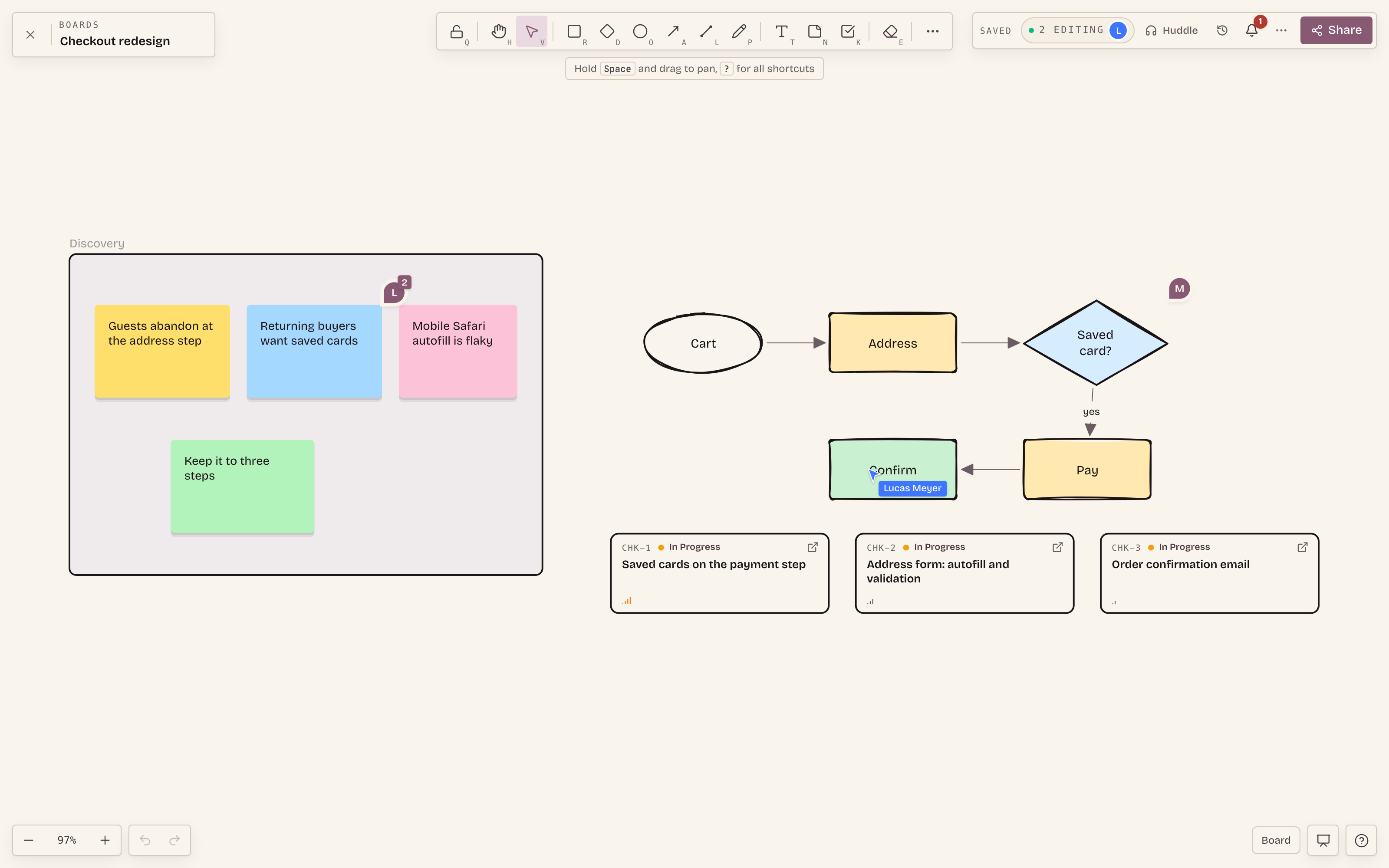
Boards now run on a new editor that we built ourselves. Every board in Ithura uses it as of today. It is faster on big boards, it keeps working when your connection does not, and it ties the canvas to the rest of your work: comments live on the exact element they are about, and task cards show the real task, not a picture of it.
If you already have boards, you do not need to do anything. This post covers what is new, and then exactly what happens to the boards you have.
Why we replaced the old editor
The old boards were built on a general-purpose graph library. It got us started, but it set limits we kept hitting. Large boards got slow. Drawing tools felt like an add-on. Comments and task cards were bolted on from the outside.
The new editor draws every element as its own light piece of the page, and only the ones near your view are kept active. A board with hundreds of stickies pans and zooms the way a small one does. Shapes, arrows, text and sticky notes share one element model, so they select, move, group and style the same way.
It uses the same live room as before. Your teammates see your edits as you make them, and the board saves itself as you work.
What you will notice first
- Full screen. The board takes the whole window. The tools sit in a floating bar at the top, and the properties for what you have selected appear beside it, so nothing covers the canvas until you need it.
- One toolbar, one key per tool. Select, hand, shapes, arrow, line, pen, text, sticky note, task card, image, eraser and frame. Each tool has a single-letter key, shown under its icon. Press
?to see all shortcuts. - A hand-drawn look. Shapes keep the sketched style you may know, with sloppiness and fill options in the properties panel.
- A save status you can trust. The header tells you when the board is saved, and who else is on it.
Task cards that are alive
A task card on a board is not a snapshot. It reads the task as it is right now: the key, the state, the title and the priority. Change the state in a list somewhere else and the card on the board changes with it.
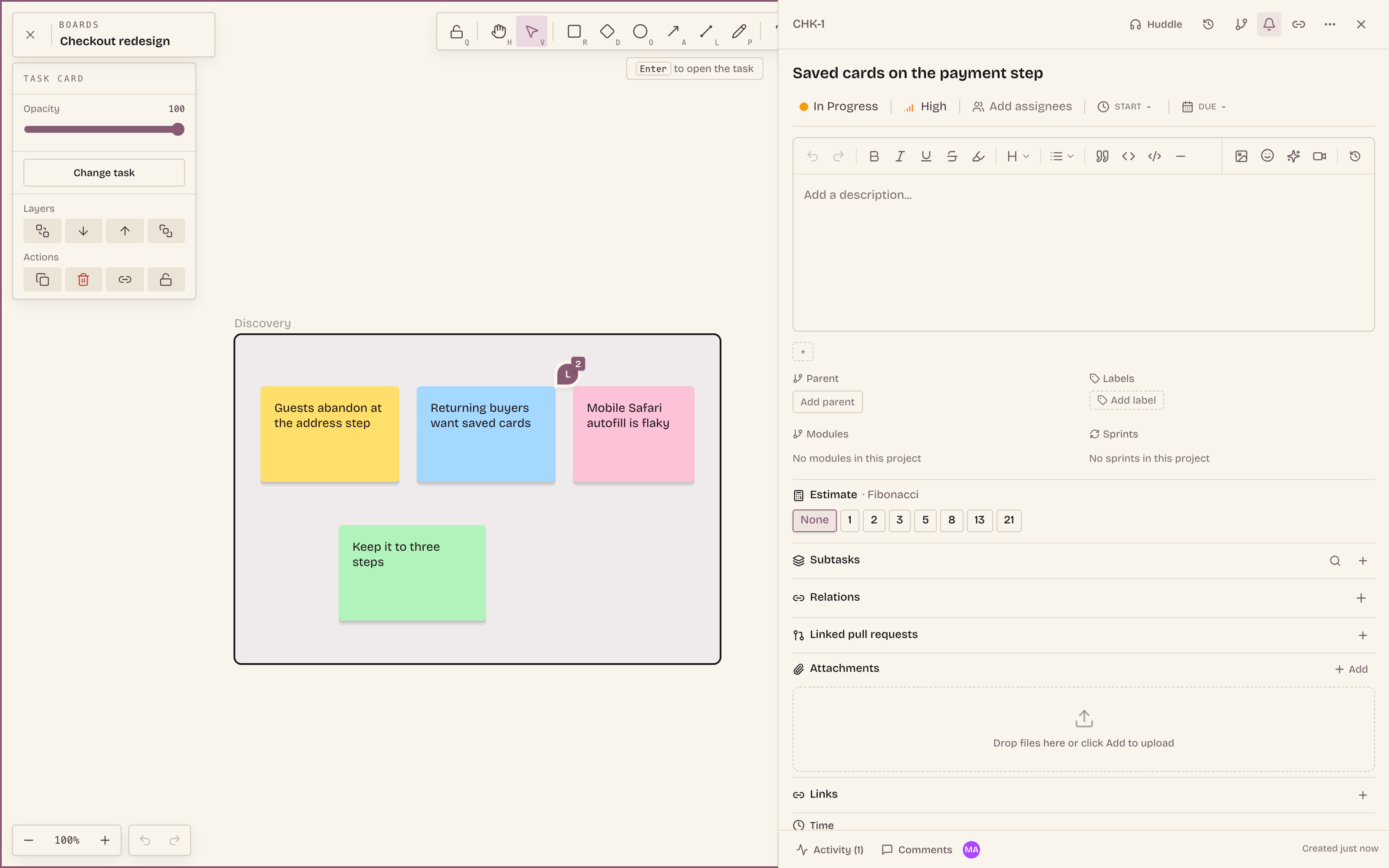
Double-click a card to open the task in a side panel without leaving the board. Edit the description, set the state, assign someone, then close the panel and you are back where you were. When you want the full page, the card has a link out.
Comments on the element, not next to it
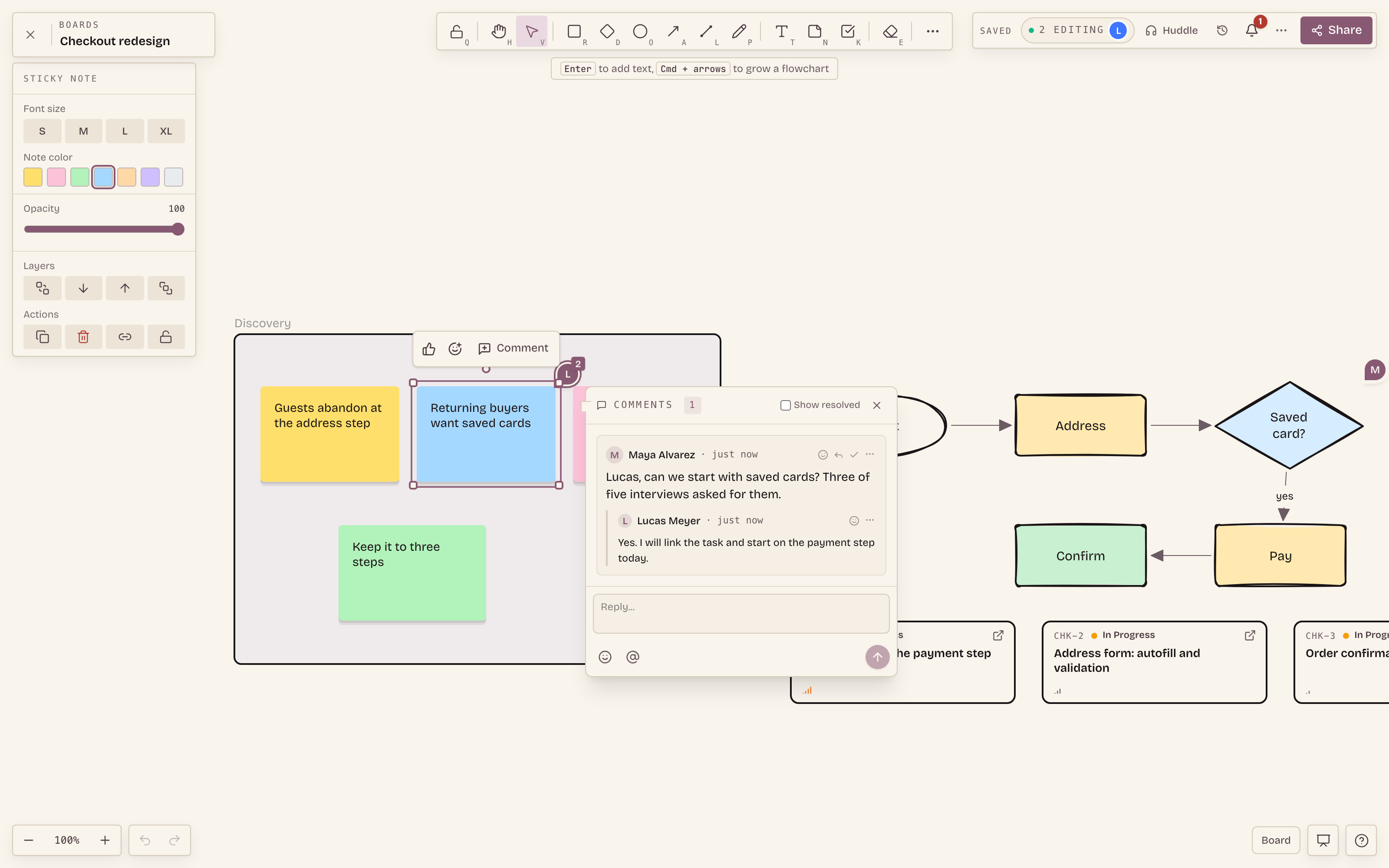
Select any element and add a comment. A small badge sits on that element with the number of replies, so a board with open questions looks like it has open questions. Threads support replies, emoji reactions and resolving.
Every thread has a link. Paste it in a chat message or a task and the person who opens it lands on the board with the right element selected and the thread open. The comments inbox in the header lists every thread on the board, with a toggle for resolved ones.
Built for working in the room
- Votes and reactions. Select a sticky and vote on it or react with an emoji. The Top votes panel, in the board menu, ranks them, which makes a retro or a prioritization round quick to close.
- Presence. Everyone on the board shows in the header and as a named cursor. The colour always comes with a name.
- Laser pointer. Press
Shift+Kand your cursor leaves a fading trail. It points at things and changes nothing. - Templates. Start a new board from Flowchart, Mind-map, Retro, Brainstorm or System design, or from a blank canvas.
- Mermaid import. Paste a Mermaid diagram and get editable shapes and arrows, not a picture.
When the network drops
Boards no longer need a perfect connection. If you go offline, you can keep editing. Your changes are kept on your device and sent when the connection comes back, and they merge with what everyone else did in the meantime. The save status in the header shows where you stand, so you are never guessing.
Go back in time
Version history keeps snapshots of the board. Open it from the header, look at an earlier version, and restore it. Before any restore, Ithura saves the current state as a snapshot first, so a restore can itself be undone.
Share it the way you need to
- Present. Walk through the board by frames, in order, with the camera moving from one to the next.
- Export. PNG, SVG, PDF, Markdown or JSON.
- Public link. Turn on a read-only link for people outside your workspace. They can look around and export, but they cannot change anything.
- In the wiki. Embed a board inside a wiki page, so the diagram sits next to the writing about it.
What happens to your existing boards
Nothing to do. Each old board converts the first time someone opens it. Your stickies, shapes, text, frames, images, task cards, arrows and their labels come across, and your presentation order is kept.
Open the board
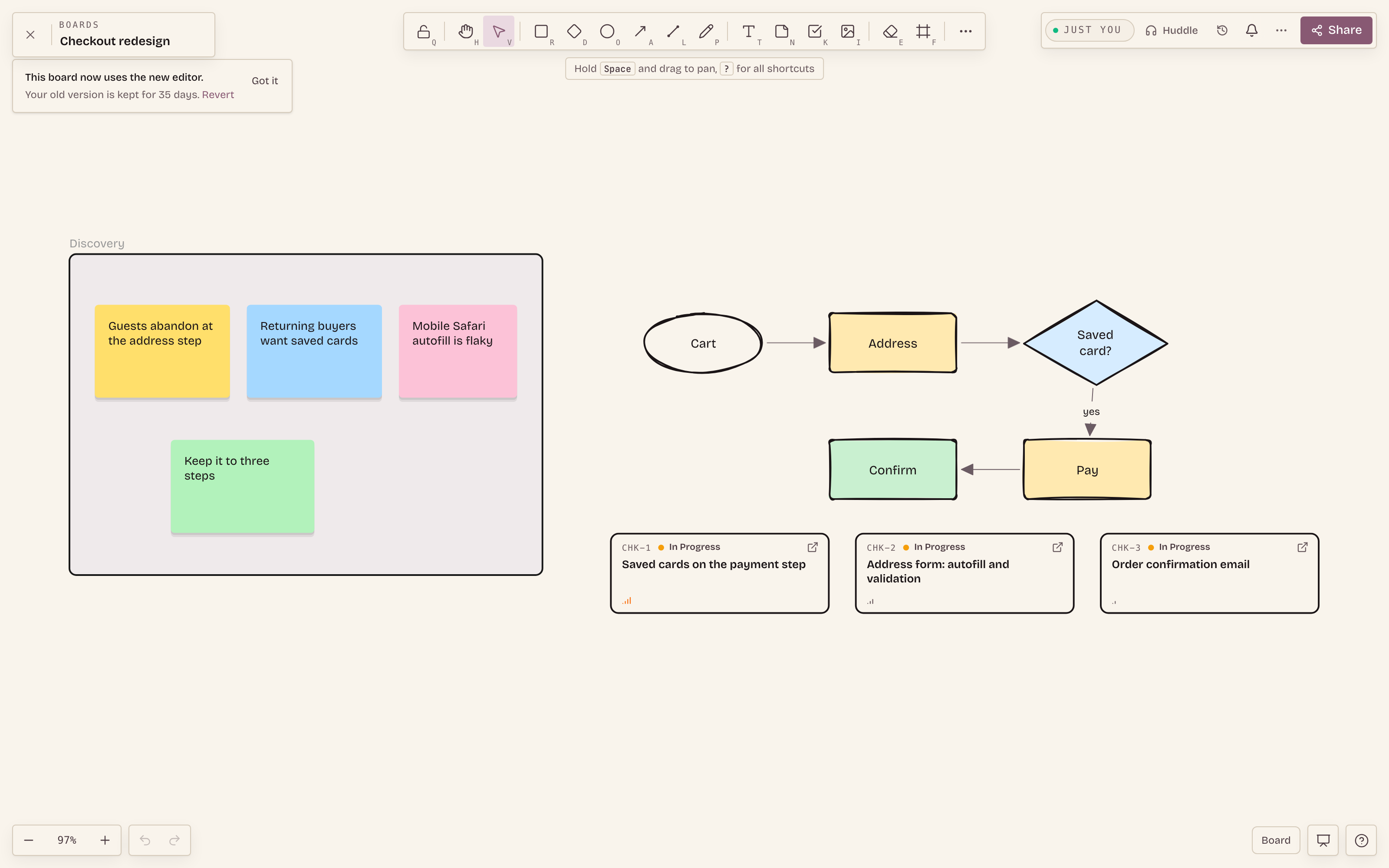
The board converts on that first open. If a teammate is already on it, the conversion waits until they leave, so nobody loses live work.Check it over
A notice at the top says the board now uses the new editor and that your old version is kept for 35 days.Go back if you need to
Within 35 days, open the More menu in the board header and choose to revert. Ithura saves a snapshot of the current board first, then returns you to the old version.
Try it
Open any board in your workspace. If you want to start fresh, make a new board from a template, drop in a few stickies and a task card, and leave a comment on one of them. That covers most of what is new.