The gap between "the work is tracked" and "the work is done" is where status goes stale. An issue says Todo while a branch is already halfway merged. A pull request ships and nobody moves the card. Keeping the two in step is busywork, and busywork is the first thing a busy team drops.
Ithura closes that gap on GitHub, GitLab, and Bitbucket. Put an issue id in a branch or a pull request title and the link forms itself. As the request opens, gets reviewed, and merges, the issue follows along. When you mark the issue done, a note goes back to the reviewers. Almost none of it is manual, and everything below was built and run against real GitHub, real gitlab.com, and real bitbucket.org.
The shape of it
Name the issue in a branch or a PR title
Put the issue id, likePAR-128, in a branch name or a pull or merge request title. Ithura sees it and links that request to the issue automatically, on GitHub, GitLab, and Bitbucket alike.Or paste a URL to link by hand
No id in the title? Paste the pull or merge request URL on the issue. One issue can hold several linked requests, and any link comes off with a single click.Status keeps itself in step
As the request opens and merges, the issue moves through a mapping you set for the workspace. Open sends it to In progress; merged sends it to Done.The work reports back
Mark the issue complete in Ithura and a note lands back on the linked request, the GitHub pull request, the GitLab merge request, or the Bitbucket pull request, so reviewers see the loop is closed without leaving the review.
1. Auto-link by convention
The lightest link is the one you never think about. Name a branch after the issue you are working on, and by the time you open the pull request, the link is already there. The convention is just the issue id in the text: PAR-128 in the branch name, or in the title of the pull request on GitHub or Bitbucket or the merge request on GitLab. Either place works, and every provider works the same way.
Switch providers with the tabs (or the arrow keys). The request differs; the issue it links, and how the link is made, do not.
Cache the workspace member lookup
Cache the workspace member lookup
Every request re-reads the member list. Cache it and invalidate on role change.
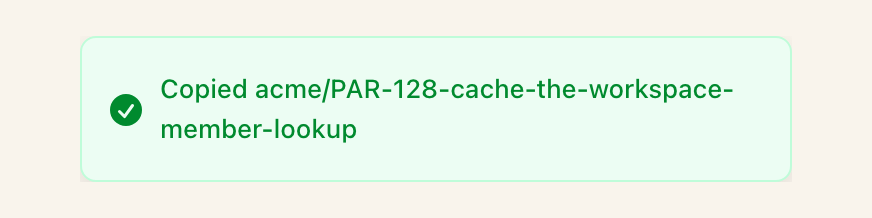
To make the convention effortless, every issue can hand you the branch name to use. Copy it, create the branch, push, and the link is waiting when you open the request. No lookup, no typo, no guessing the format.
2. Or link by URL, by hand
Conventions are optional. When a request already exists, or its title never carried an id, paste its URL on the issue and the link forms just the same. A GitHub pull request URL ends in /pull/204; a GitLab merge request URL ends in /-/merge_requests/57; a Bitbucket pull request URL ends in /pull-requests/57. Ithura reads any of them, figures out the provider, and attaches the request. Remove a link with a single click whenever you like.
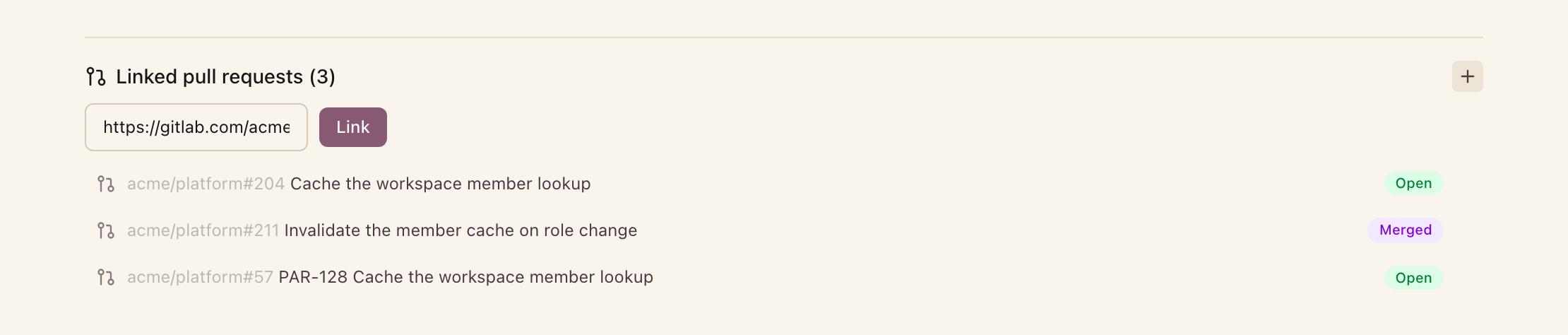
One issue is not limited to one request. A fix and its follow-up, a backport, a revert: link as many pull or merge requests as the work actually took, and each keeps its own state on the issue.

3. Status that follows the request
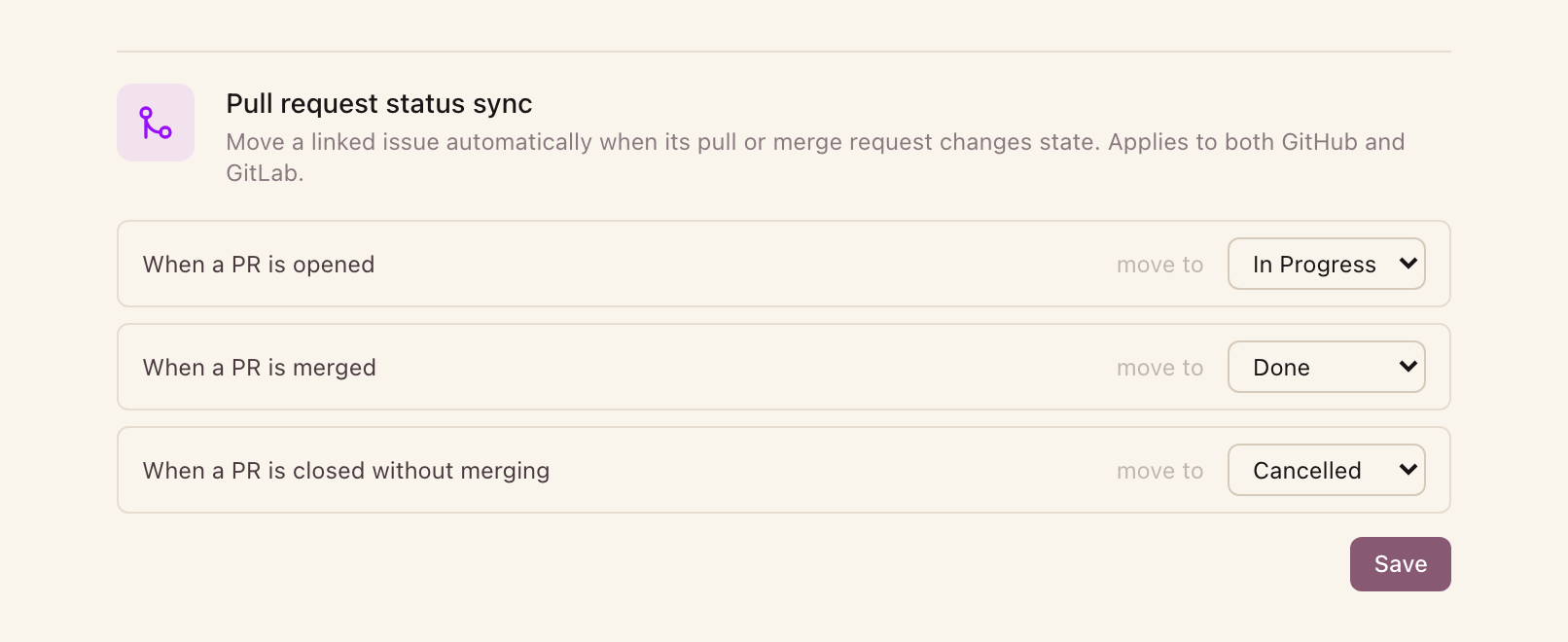
A link is only half the value. The other half is that the issue moves on its own. Ithura watches the request through its life, from opened, to under review, to merged, and advances the issue by a mapping you control for the workspace. The defaults are the obvious ones: opening the request puts the issue In progress, merging it marks the issue Done. Change the target states for any stage to match how your team actually works.
Step through the life of a request. Each stage on the left maps to the issue state on the right, per your workspace mapping.
4. A signal back to the reviewers
Status usually flows one way, from the code into the tracker. This link also flows the other way. When you mark an issue complete in Ithura, a note is posted back on the linked request, on a GitHub pull request from the Ithura GitHub App, on a GitLab merge request from your connected account, and on a Bitbucket pull request from your connected account, so whoever is reviewing sees the work is signed off without switching tabs to check.
Connect once, in Integrations
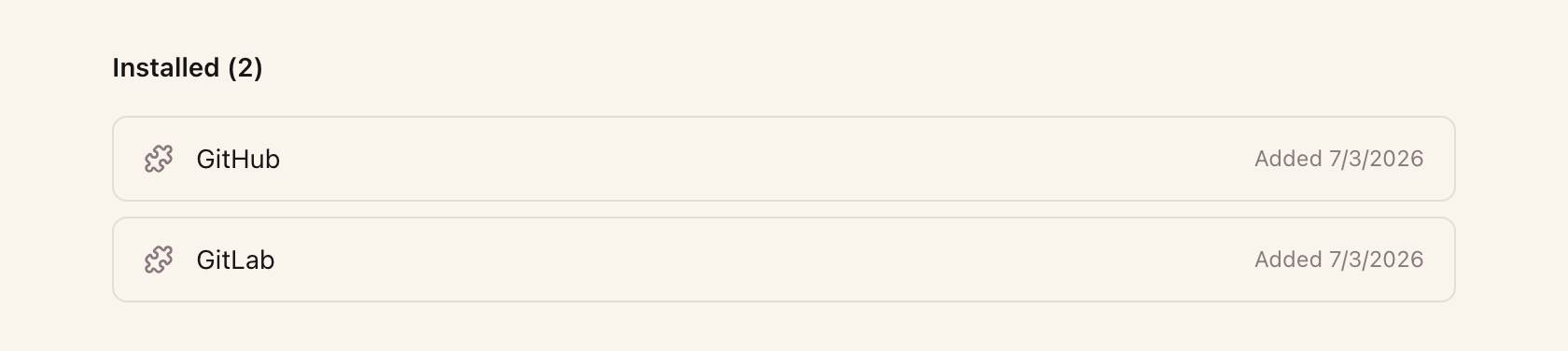
All of it starts from one screen. Open your workspace Integrations, and connect GitHub, GitLab, Bitbucket, or all three. From there, linking, status sync, and the branch-name helper are on for every project in the workspace.
- GitHub: install the Ithura GitHub App on the organizations and repositories you choose. Nothing more to paste.
- GitLab: authorize with OAuth, on gitlab.com or your own instance.
- Bitbucket: authorize with OAuth on Bitbucket Cloud. Linking a repository registers its webhook for you, and Ithura verifies the signature on every event it delivers.
Link a project, import its issues
Connecting is the workspace-wide step. The second step is per project, and it is where a repository becomes the source of truth for one Ithura project. Open a project's Settings → Integrations, and each connected provider offers its own card.
Pick the repository
The GitHub card lists the repositories you added at the workspace level; the GitLab and Bitbucket cards list the projects and repositories your account can see. Search, then link the one that backs this project.Its issues come in
Linking a GitLab project imports its open issues into Ithura up front, so the project starts populated instead of empty. Each imported issue keeps a link back to where it came from.The webhook is wired for you
Ithura registers the repository's merge- or pull-request webhook itself, with an unguessable per-repository secret it verifies on every delivery. From then on, new requests link and sync with no further setup.
Why it works
The tracker stops lying. An issue is In progress because a request is genuinely open, and Done because it genuinely merged, not because somebody remembered to drag a card. The convention is a habit developers already have, naming a branch after the thing they are building, and the rest, on GitHub, GitLab, and Bitbucket alike, follows from that.