Sizing work is only useful if the whole team reads the size the same way. One team counts story points, another holds up a t-shirt, a third thinks in hours. Estimates let each project pick the scale that matches how it actually talks about effort, then shows that scale as a small chip on every issue, so anyone can gauge the size at a glance without opening a thing.
A project chooses one active scale, built from an ordered list of values. Every value can carry a custom icon, so the chip says something at a glance about size, effort, or duration. Only the active scale shows on issues, and you can switch which one is active whenever the team changes how it sizes work.
Three families to size by
An estimate system belongs to one of three families. Pick the one that matches how your team already speaks about effort:
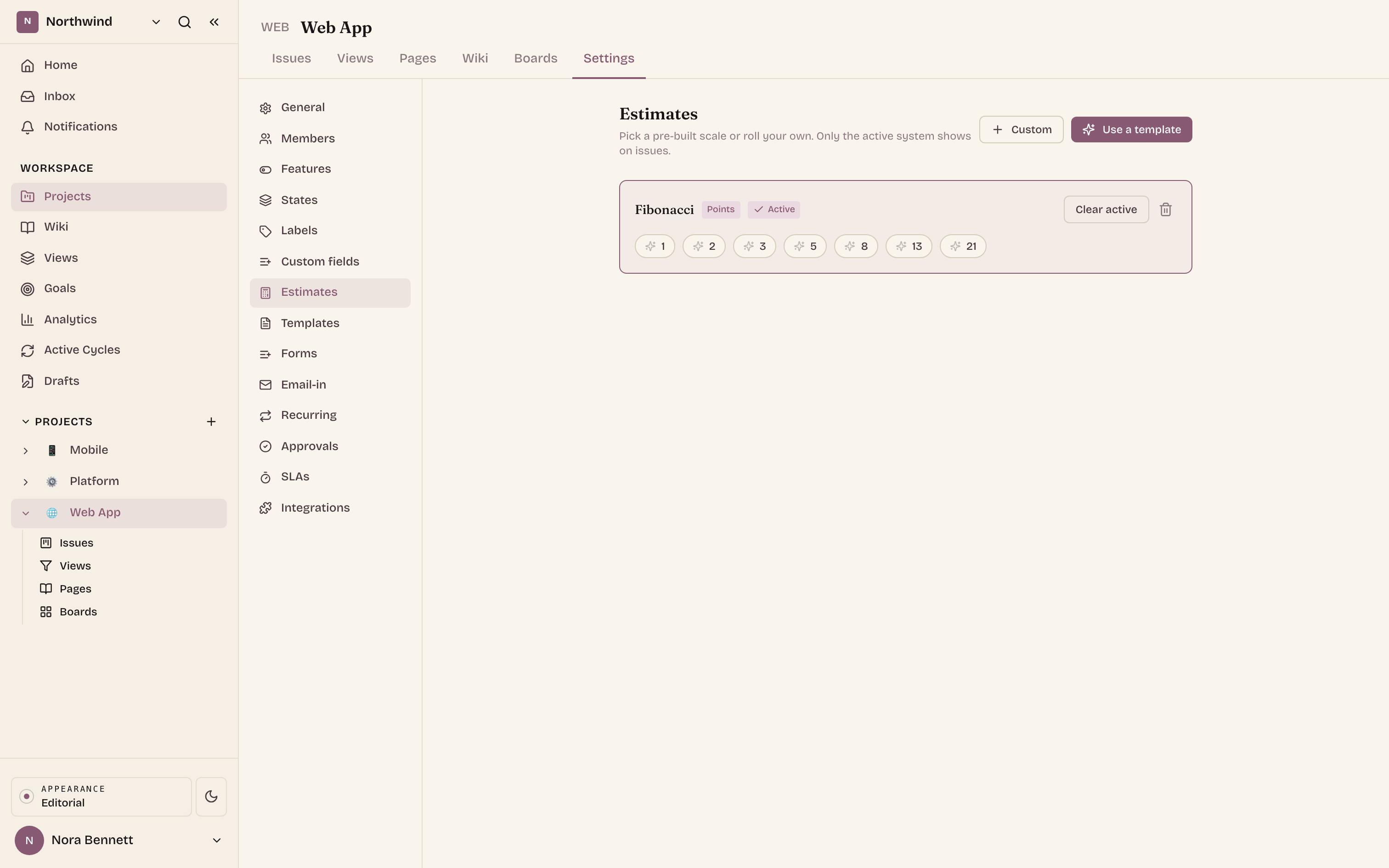
- Numeric (points), for scoring relative size, for example a Fibonacci scale of
1, 2, 3, 5, 8, 13. - Qualitative (categories), for a quick coarse call, for example t-shirt sizes
XS, S, M, L, XL. - Time (durations), for sizing by the clock, for example
1h, 2h, 4h.
Start from a ready-made template and use it as is, or build a custom system by typing your own comma-separated values. Either way, the result is an ordered scale that becomes a row of chips on your issues.
Set it up, once, per project
Estimates are configured per project, under Project settings, Estimates. A project admin picks the scale, sets it active, and (optionally) gives each value an icon. After that, the whole team just reads the chips.
Pick a template or build a custom system
ChooseUse a templateto start from a ready-made scale, orCustomto name your own and type the values as a comma-separated list. A system needs at least one value before it can go live.Give each value an icon
Open a value's icon slot and pick a glyph from the curated set (grouped by Size, Effort, Time, and Generic), or leave it plain. The icon is a scannable hint; the value itself is still the estimate.Set it active
Each defined system has aSet activebutton. Only the active scale shows on issues. Keep several systems defined and switch between them, orClear activeto stop showing estimates on new issues.
The same issue, sized three ways
The chip is where an estimate lives on an issue. It shows the value's icon (when one is set) and its label, so a reader scans sizing without opening the issue. Switch families below to watch one issue's chip change from a point score, to a t-shirt size, to a duration.
Switch the active family with the tabs (or the arrow keys). The issue stays the same; its estimate chip is drawn from whichever scale is active.
Where the chips show up
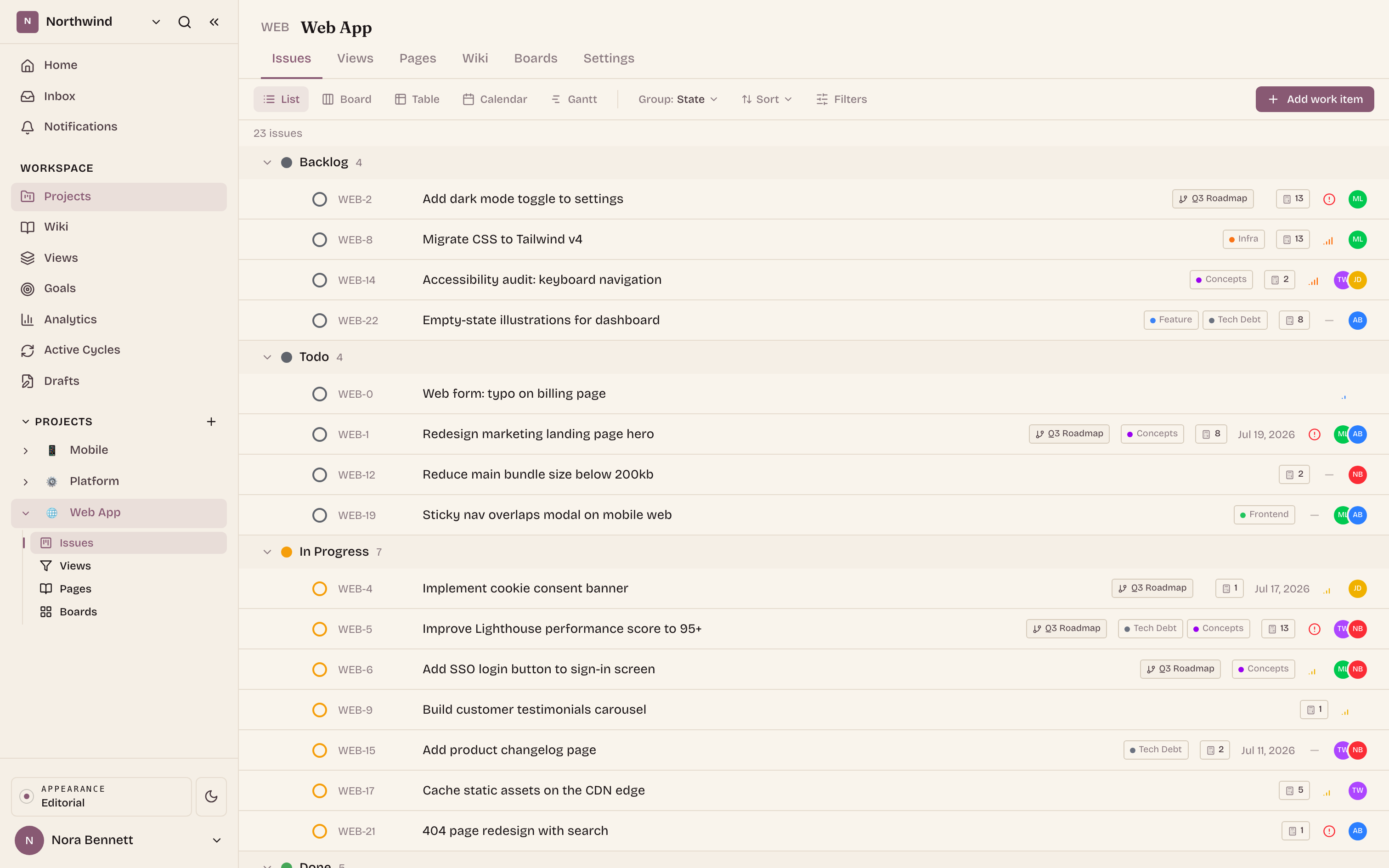
Once a project has an active scale, its values surface as estimate chips across the issue views, so sizing is visible wherever the work is:
- On issue rows in the list view, for scanning a whole backlog by size.
- On the issue detail panel, where you set or change an issue's estimate directly.
- On board cards, so a column reads its own weight at a glance.
- From the bulk action bar in the list, to set an estimate on many issues at once.
Why it helps
Estimates give a team a shared unit for effort without forcing a single way of thinking on every project. A support queue can size by the hour, a product squad by points, a design track by t-shirt, and each reads its own chips the way it already talks. The icon makes the scale legible at a glance, and because only the active system shows, the board never mixes two vocabularies at once.