Some thinking does not fit in a list. Mapping a flow, running a workshop, sketching an architecture, planning a launch on a wall of sticky notes: that work wants a surface, not a text field. Boards give every project an infinite canvas for exactly that, and they keep it tied to the issues the work turns into.
Boards are multiplayer by default. Open one and your teammates can open the same one, see your cursor, and edit alongside you in real time. When you are ready to show the result to people outside the workspace, one switch turns a board into a read-only public link that needs no account.
Ship the new onboarding flow
Nodes shown
frame, sticky, text,
shape, image, issue,
connector, freehand
A canvas made of the pieces you plan with
The toolbar gives you the parts of a real whiteboard, plus a few that only a digital one can offer. Every element is a node you can move, resize, and connect.
- Sticky notes and text for ideas and labels, the way you would cover a wall in a workshop.
- Shapes and connectors for diagrams and flows. Draw an edge between two nodes to show a step, a branch, or a dependency.
- Issue cards that reference real work in the project, so a box on the canvas points back to the issue that delivers it.
- Images, frames, and freehand drawing to bring in a screenshot, group a region under a title, or just scribble an arrow.
Choose a tool to highlight the node it places, with a note on what it is for. Buttons are reachable by keyboard, and each says what it does.
Ship the new onboarding flow
Select. Pick a tool above to add or highlight a node. Select mode moves and resizes anything already on the canvas.
Multiplayer, by default
There is nothing to switch on. Everyone who opens the same board sees each other's live cursors, what each person has selected, and every edit as it lands. Each person gets a colour, and that colour always travels with a name label so presence never rests on colour alone.
Open a board, and your teammates can join it
Presence is automatic. When someone else opens the same board, they appear with a labelled cursor. When they leave, they fade out.Edits sync live, in both directions
Move a sticky, draw a connector, add an issue card: everyone on the board sees it happen. The shared document is the single source of truth.Drags stay smooth, even under load
In-progress drag positions ride a separate presence channel, so a moving node keeps moving for everyone even if the document channel is briefly busy.
Where boards live
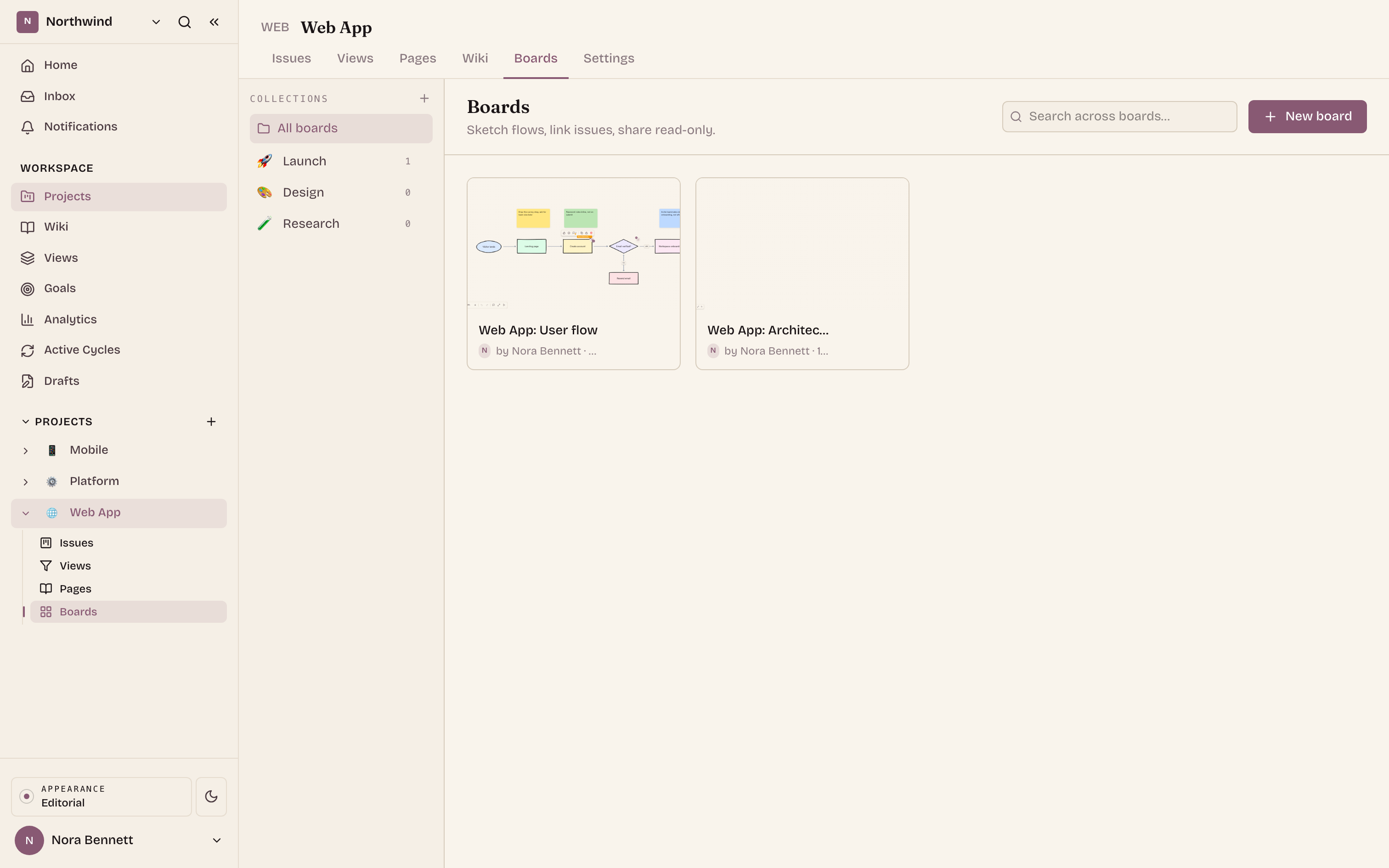
Boards belong to a project. Each project has a Boards tab that lists every board as a card, and opening one drops you straight into the editor. From the index you can group boards into collections to keep a busy project tidy, and you can duplicate a board to start from a copy instead of a blank canvas. A collection is only a grouping label, so removing one keeps every board inside it.
Share a board, read-only, with anyone
When a board is worth showing beyond the workspace, publish it. A public board is strictly read-only: viewers can pan, zoom, and export, but they cannot move, edit, or add anything, and they never need an Ithura account. It is the same canvas the editor renders, with every interaction past pan and zoom switched off.
Switch with the tabs (or the arrow keys). Editing shows live cursors and selection handles. The public link shows the same nodes with all of that removed.
Ship the new onboarding flow
Two people are on the board. You see their cursors and selections, and every edit syncs as it happens.
Turn the public link on, or off
Sharing is a deliberate switch a workspace admin controls from the board's Share dialog.
Open the board's Share dialog and click Enable
Ithura generates a public link of the form/boards/<anchor>. Copy it with the copy button and send it to your viewers.Anyone with the link can view, and only view
The public viewer can pan, zoom, and export to PNG, SVG, or PDF. A small read-only Ithura mark sits in the header. No editing, no sign-in.Click Disable to stop sharing, immediately
The link stops working at once, and anyone who opens it afterwards sees a "Board not found" message. Re-enabling later serves the board under the same anchor again.
Why it works
A board is where the messy, visual half of the work lives, and it does not drift away from delivery: issue cards keep it anchored to the project. Multiplayer means the whiteboard is the meeting, not a photo taken after one. And when the thinking is ready to share, a single read-only link lets anyone see it without handing them the keys to your workspace.