Most of the work a team does starts as a request from someone else: a customer hits a bug, a colleague in another department needs a change, a partner asks a question. Too often those requests arrive scattered across inboxes and chat threads, and the person who sent one has no idea what happened next.
Asks fixes that. Anyone can file a request into an Ithura project from Slack, email, or a public web form, with no Ithura account. Every request becomes a normal issue your team triages in one place, and updates flow back to the person who sent it. Here is the whole path, from capture to a no-login status page.
The shape of it
Someone files a request, from wherever they already are
They react to a Slack message with your ticket emoji, write to your intake email address, or fill in a web form you can share anywhere. No account, no password, no seat.It lands in one triage inbox as a normal issue
Whatever the channel, the request becomes a standard Ithura issue in a single inbox. Same status, same fields, same assignment, ready to triage alongside the rest of your work.Your team replies, and internal notes stay private
Reply to the submitter straight from the issue. Keep your triage discussion in internal comments that the submitter never sees.The submitter follows along, no login required
They watch progress on a private status page showing what they sent and only the updates your team chooses to share.
1. Capture a request from anywhere
A request should be easy to file from the place the person already is. Asks meets them there, across three channels, and every one produces the same kind of issue in the same inbox.
- Slack: react to any message with your ticket emoji, or mention the bot. The request links straight back to the original thread.
- Email: forward or write to your intake address. Attachments arrive with their real filenames.
- Web form: share a public form on your site, in a help center, or in a signature. No sign-up wall in front of it.
Switch channels with the tabs (or the arrow keys). Notice the resulting issue on the right stays the same, wherever the request came from.
Jordan Diaz 9:14 AM
Export to CSV times out on our big project. Spins for a minute then fails. Smaller ones are fine.
Export to CSV times out on large projects
Downloading the full issue export spins for a minute and then fails. Smaller projects export fine.
2. It lands in one triage inbox
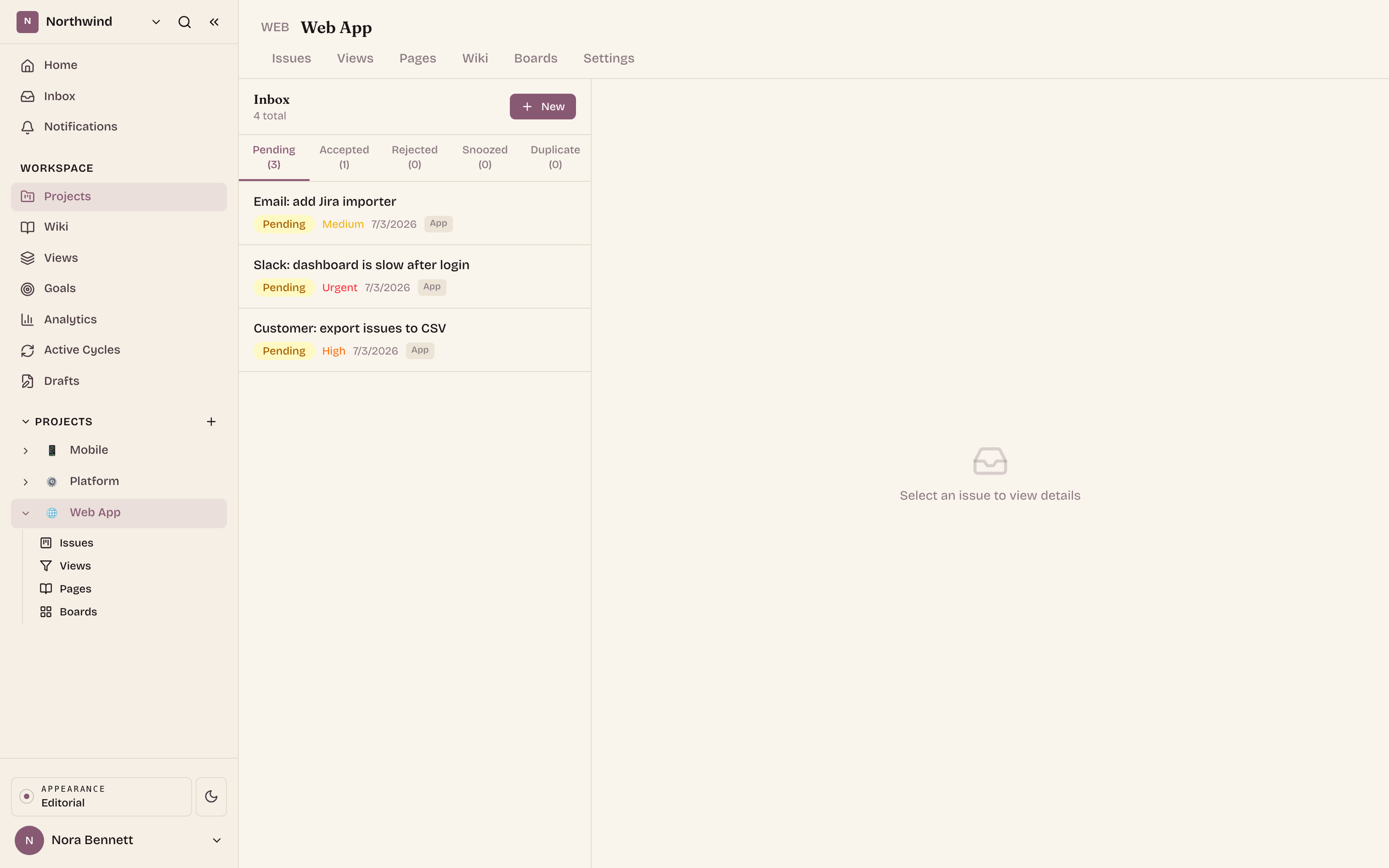
Every request, from every channel, becomes a normal issue in a single triage inbox. It carries the submitter's email, any attachments, and a link back to its origin (a Slack request opens the original thread). You triage it exactly like any other issue: set a status, assign an owner, add it to a cycle.
3. Reply in the open, keep notes private
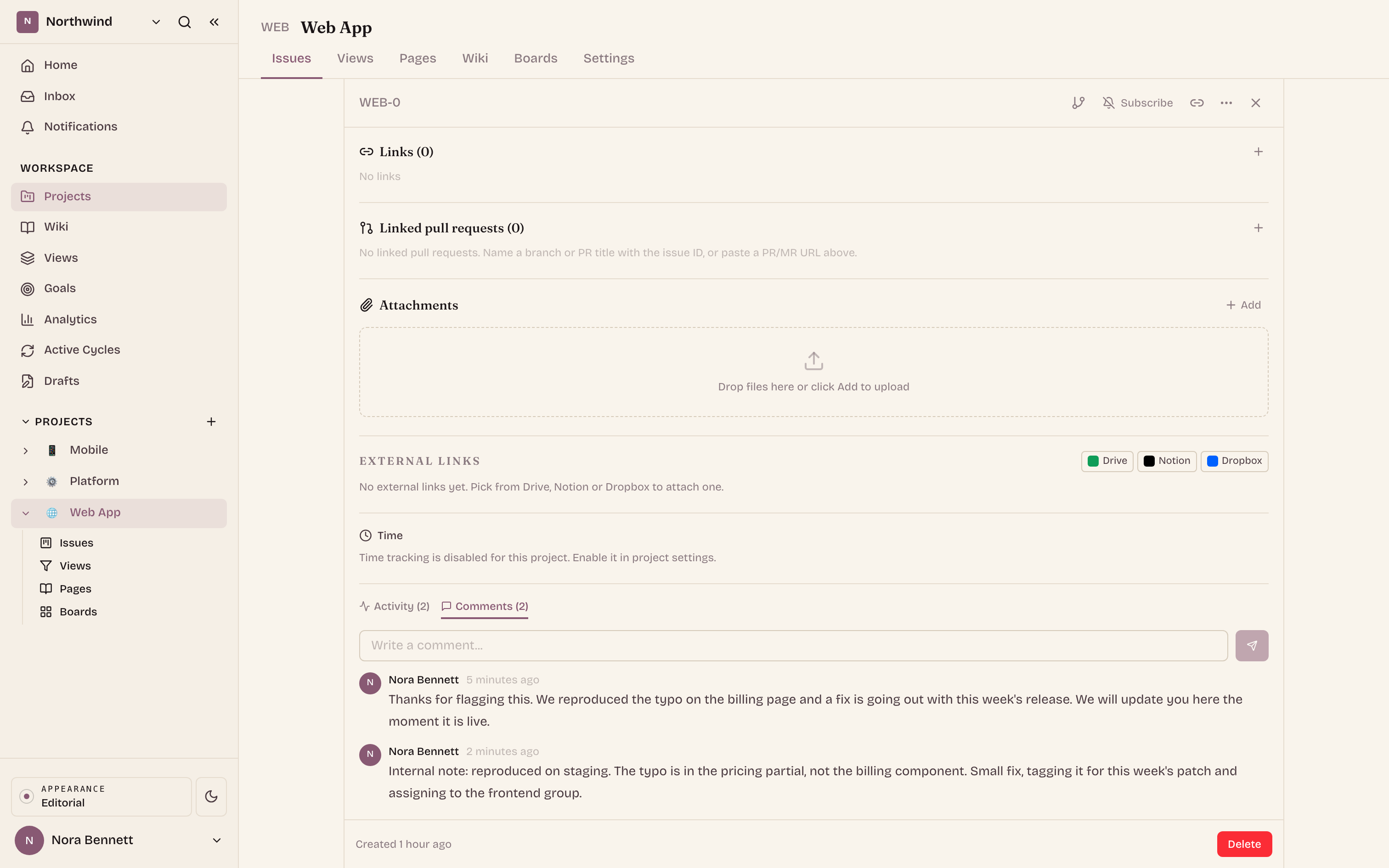
Answering the submitter and talking to your team are two different conversations, and Asks keeps them apart. Replies you send reach the submitter. Internal comments never do.
4. The submitter follows a no-login status page
The person who filed the request gets a private link to a status page. No account, no password. It shows two things: what they sent, and the updates your team has chosen to share. Shared updates also reach them by email and, for a Slack request, back in the original thread.
What the submitter sees at their private link. Two panels: what they sent, and the updates the team has shared.
What you sent
Export to CSV times out on large projects
Downloading the full issue export spins for a minute and then fails. Smaller projects export fine.
Updates
Today, 11:02 · Nora, Support
We reproduced the timeout and opened a fix. We will let you know the moment it ships.
Today, 09:20 · Ithura
Your request was received and is now being triaged. You will get an email when there is news.
Why it works
Requests stop leaking. Everything coming in from outside lands in one place, as issues you already know how to work. The people who sent them stay informed without ever needing a seat, and your internal discussion stays internal. One inbox for the team, one clear status page for everyone else.